🔁 Test Cycles
A Test cycle is an ordered list of test cases, tied to a Connection, that are run together. You build cycles in App › Test cycles, run them from Execution, and replay them automatically from Schedule.
Keep three rules in mind:
- A cycle references cases. It does not copy them. A case can belong to several cycles. Its results are read cycle by cycle, and a case removed from a cycle stays in the library.
- A cycle runs on one Connection, chosen when it is created: the SAP system (host, instance, client and language) its runs reach. If needed, a single case of the cycle can be given its own connection.
- A cycle is never deleted. It is archived, and its test executions, runs, defects and audit trail are kept.
Admins and Testers create, compose, run, duplicate and archive cycles. The Auditor reads the cycles, their cases, their data and their Mapping, and can open the designer in read-only mode. No write action is shown to this role, and the designer's case library does not open for it.
The list of cycles
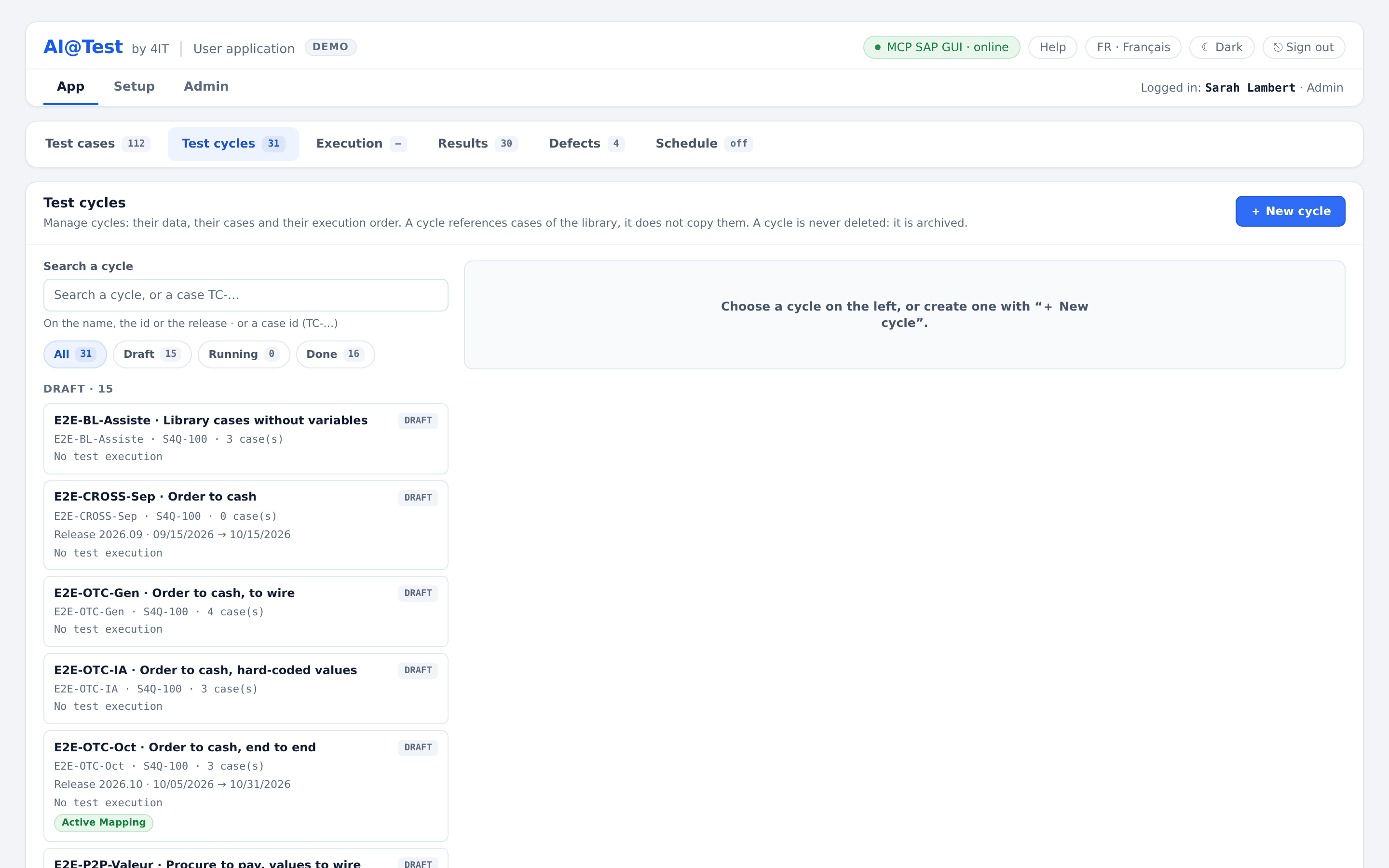
The left side of Test cycles lists the cycles, grouped by state. Each cycle shows its id, its connection, its number of cases and a progress line such as "4 passed · 1 failed · 0 blocked · 2 not run".
- Search: "Search a cycle, or a case TC-…" searches on the name, the id or the release of a cycle. Type the exact id of a case to list the cycles that contain it.
- Filter by state: "All", "Draft", "Running", "Done".
- Archived cycles are folded at the bottom, under "Archived cycles (n)".
Choose a cycle to open its detail on the right.
Cycle states
Nobody sets the state of a cycle by hand: AI@Test deduces it from the cycle's test executions. A test execution is one dated launch of the cycle, numbered EX-…, that groups the runs of its cases.
| State | Meaning |
|---|---|
| Draft | The cycle has no test execution yet. |
| Running | One of its test executions is in progress. |
| Done | It has test executions and none is in progress, however the last one ended. |
How a test execution ended (Done, Stopped, Frozen (INFRA)) shows on the test execution itself, in Execution and Results. Archiving is separate from the state: an archived cycle keeps its state and reads "Archived on date by user · read-only".
Create a cycle
- In Test cycles, click "+ New cycle" (the same button is also in Execution).
- Enter the "Cycle name", for example SD acceptance September.
- Optionally, enter an "Id (optional)". Without one, the hub derives it from the name. An id that is already taken is refused.
- Choose the "Cycle connection".
- Click "Create cycle".
The screen confirms: "Cycle … created: add cases to it in Test cycles, with “+ Add cases”." The new cycle is a Draft, with no cases.
Connections are declared by an Admin in Admin › Connections. If the dialog reads "No connection declared", ask an administrator. The list of connections flags two situations. A connection whose last test did not pass is flagged so that an administrator tests it again in Admin › Connections. A connection whose execution agent is offline is flagged too: no run starts on it before the agent is back.
The import itself never creates a cycle, but the "+ Import cases" dialog has its own "+ New cycle" button. The new cycle is created at once and chosen as the target: "Cycle … created and chosen as the target cycle: the import will add its cases to it."
The detail of a cycle
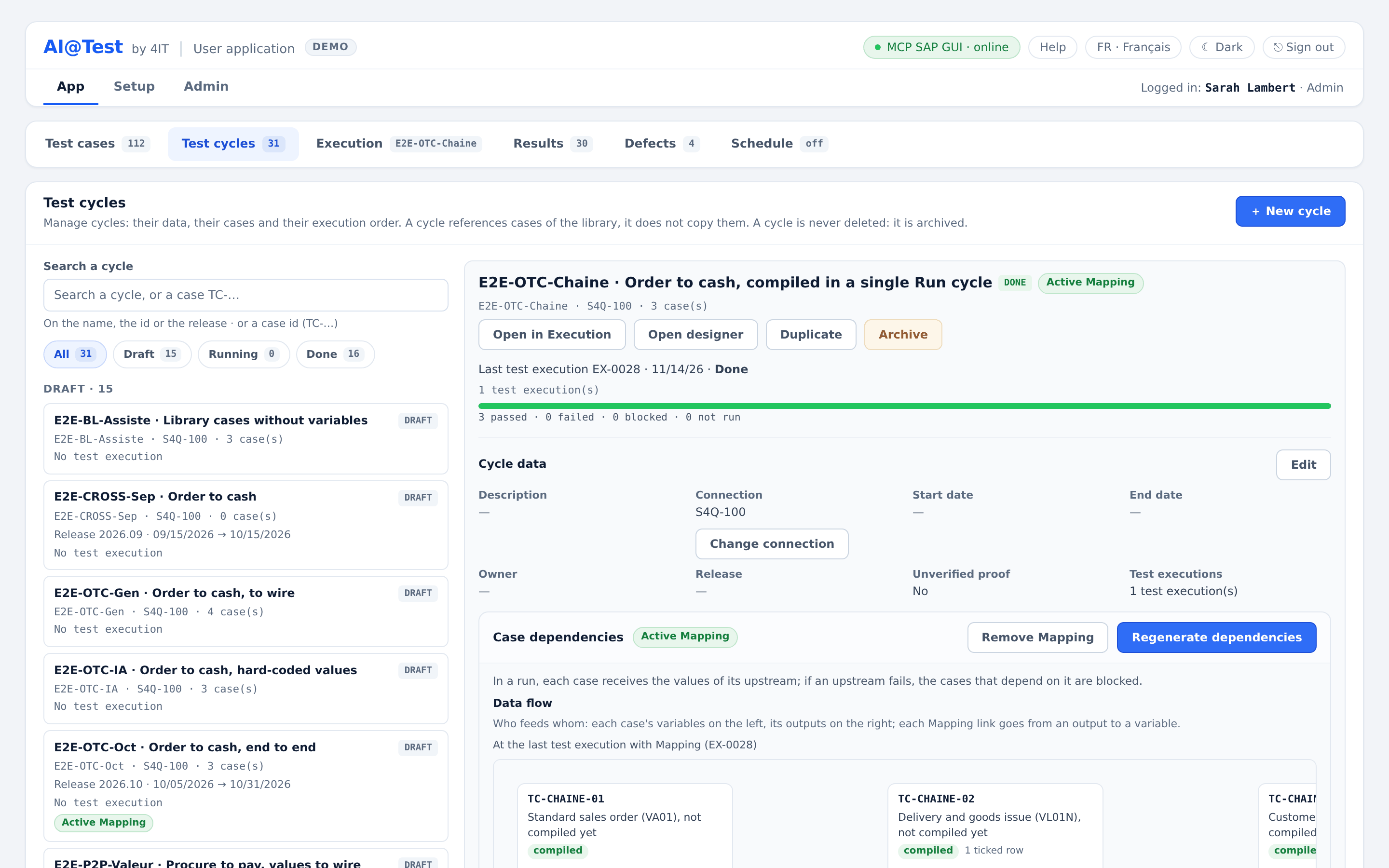
The detail of the chosen cycle shows, from top to bottom:
- its actions: "Open in Execution", "Open designer", "Duplicate" and "Archive" (or "Restore" for an archived cycle);
- its last test execution ("Last test execution EX-… · date"), its number of test executions and its progress;
- Cycle data: its description, dates, owner, release and connection;
- Case dependencies: its Mapping, which chains cases together;
- Cases in this cycle: its cases, in execution order, with their data rows.
Add, order and remove cases
Add cases
- From the cycle: in "Cases in this cycle", click "+ Add cases". Search the library (id, title, transaction…), tick the cases, then click "Add n case(s)". The cases are added at the end of the list. A case already in the cycle reads "already in the cycle".
- From the library: in Test cases, tick the cases, choose the "Target cycle", then click "Add n to cycle".
- From the designer: drag a case from the library onto the canvas (see The Designer below).
A case compiled on another connection than the cycle's is refused as is. The dialog then offers "Recompile case on connection to add it": the case is added and will be compiled on the cycle's connection at its next run.
The table of cases
"Cases in this cycle" lists the cases in execution order, with the columns "Pos.", "ID", "Title", "Compilation", "Last result", "Last run" and "Actions" ("Details" opens the case).
- Reorder: "Drag ⋮⋮ to change the execution order". The handle also works with the up and down arrow keys.
- Act on a selection: tick cases, then "Remove from cycle", "Move to…" or "Copy to…" (to another cycle that is not archived).
- Removed cases: a removed case stays in the library. Its runs stay with this cycle and can be read in Results. The block "Removed from this cycle" lists the removed cases, the most recent first, and "Re-add" puts one back.
The composition can be changed at any time, except while the cycle has a run in progress. A run plays the list of cases as it was when it started.
"▷ Run cycle" is refused on a cycle without cases. Add at least one case first.
Cycle data
The "Cycle data" block shows the data of the cycle. Click "Edit", change the fields, then "Save".
| Field | What it holds |
|---|---|
| Name | The name of the cycle. It is not edited here: a cycle is not renamed. |
| Description | A free description. |
| Connection | The connection of the cycle. It changes only with "Change connection". |
| Start date / End date | The planned period. An end date before the start date is refused. |
| Owner | The user in charge of the cycle, or "No owner". A deactivated user reads "(deactivated)". |
| Release | A free text of the cycle, such as Release 2026.10, distinct from the tags of the cases. |
| Repository suite | Read-only. It stays empty ("—") for a cycle created in AI@Test. |
| Test executions | The number of test executions of the cycle. |
| Unverified proof | "No" by default. See below. |
Change the connection of a cycle
"Change connection" first shows what the change would do, before you confirm:
- the cases that will recompile at their next run, because they were compiled on another connection;
- the cases this connection refuses;
- the open defects whose retest will be refused on the new connection;
- whether the Mapping of the cycle will become stale.
Past runs keep their connection. The change is refused while the cycle has a run in progress or a launch waiting in the queue, and while an active schedule targets the cycle (deactivate it first). Click "Confirm" to apply it.
A single case can also play on its own connection inside the cycle: in the designer, select the case, then use "Change connection" in its properties. Its data set is then the one of the new connection.
Unverified proof
By default, a case that creates data in SAP must prove it with a database proof, a read of the database that shows the created record. The "Unverified proof" option of the cycle lifts this requirement:
- "Yes — only the screen judges": "no database proof is required or played in this cycle. Every run carries the “Unverified proof” mark."
- The cycle header shows the "Unverified proof" mark while the option is set.
- A run in such a cycle still counts fully for defects.
- A trace compiled under this option is not played in a normal cycle. It is set aside with the reason "trace compiled without database proof, in a cycle with unverified proof: recompile it to play it here".
The option is fixed when a test execution starts: changing it afterwards changes neither a running test execution nor past ones. Use it only when you accept that the SAP screen alone judges the result.
Data rows and data sets
A case whose values change from one run to the next writes them as variables, such as <customer>, declared with their base value in the "# Variables" block of its Gherkin. Its values are kept in data sets:
- one data set per case and per connection, kept in AI@Test, in versions;
- on the case's home connection, row 1 is the baseline: the base values of the case, read-only;
- the other rows are entered, copied from another connection, or proposed by the agent ("Fetch test data", below).
You edit data sets in the case's Details › Test data, in Test cases. A cycle decides which rows it plays.
Tick the rows a cycle plays
Under each case that has variables, the table of cases shows a data line, such as "Data · 3/4 rows · connection ▸". Open it to see the rows of the cycle's connection, each with its origin ("baseline", "entered", "copied", "agent").
- Each ticked row gives one run of the case when the cycle runs.
- "Select all" ticks every row. A case keeps at least one row ticked: "Keep at least one row, or remove the case from the cycle."
- "Edit data sets" opens the case's Details on its Test data, on the cycle's connection.
- When a new version of the data set is saved, all its rows are ticked again.
- While a test execution runs, the selection is frozen: "Selection frozen during test execution EX-…".
A case without variables runs once, with no row to tick.
The compilation of a case that has variables ends with two replays on two distinct rows (see Execution). A case with only its baseline on a connection reads "⚠ No data set on connection · baseline only": it does not compile there, for want of a second row. If the case writes to SAP, add a third row: its compilation may consume the data of its row, and the bar then replays two other rows.
Details › Test data tells in advance whether the case can compile on the connection: "Ready to compile on connection", followed by the row the compilation will use and the rows the bar will replay (for example "compiles on row #1, then the bar replays it with row #2."), or "Not ready to compile on connection" with the reason.
Fetch test data
"Fetch test data", in Details › Test data, asks the AI agent to find valid values in the SAP system of the connection:
- Click "Fetch test data". The dialog "Fetch test data · connection" lists the "Data to vary", each with a recommendation ("variable", "recommended", "derived from the plant", "not recommended").
- Tick the data to vary: they become variables of the case.
- Click "Find valid combinations". If ticked values are still fixed in the Gherkin, AI@Test first asks "Make these values variable, then search?" and warns that a compiled case becomes stale: confirm with "Make variable and search".
- The agent searches the connection read-only, links values together when a table links them (customer and sales organization, material and plant, plant and storage location), and adds them to the table as proposed rows. None is preselected. "Stop the search" interrupts it.
- Keep or discard each proposed row ("Keep all", "Discard all", or row by row), then "Save data set".
The search reads only identifiers, organizational data, statuses, blocks and quantities: never a name, an address, an SAP user, a tax identifier or free text. It is bounded in calls and cost, and what it spends counts toward the instance's LLM spending.
Check rows
"Check rows" checks each row of the data set on the connection shown, read-only, with fixed queries and without AI. Each row then reads:
| Mark | Meaning |
|---|---|
| ✓ valid | The values exist on the connection. |
| ✕ reason | A value is missing or wrong; the reason names it. |
| ○ not checkable | No check exists for the type of this column. |
| not checked | The row has not been checked. |
| not checked (check expired) | The connection was tested again after the check: run "Check rows" again. |
Saving a data set waits for its rows to be checked: unchecked, unproven, missing or proposed rows are named, and the data set is not saved until they are fixed, checked, kept or discarded. In some cases where the connection cannot be read yet, the screen says so and the rows are saved "not checked".
Mapping: chain cases
The Mapping is the set of dependencies between the cases of a cycle: a case receives a value that a case played before it created. For example, a delivery case receives the order number that the order case has just created.
Prepare the cases
- In each upstream case, declare the outputs at the end of its Gherkin, in a "# Sorties" block, one line per output:
# <order_no>. A case already compiled publishes the outputs of its trace. - In each downstream case, declare in its "# Variables" block the variable of the same name that receives the value.
The states of a Mapping
| State | What it means |
|---|---|
| No Mapping | "The cases run on their own, each with its own data." |
| Mapping proposed, to review | "Links have been proposed. Until they are saved, the cycle runs without links." |
| Active Mapping | "In a run, each case receives the values of its upstream; if an upstream fails, the cases that depend on it are blocked." |
| Stale Mapping — the cycle has changed | The cycle changed after the Mapping was saved: it runs without links until the Mapping is regenerated. |
A Mapping becomes stale when a case is added or removed, a linked case is recompiled, a variable is removed, the order changes so that a downstream case comes before its upstream case, or the connection changes. The reason is shown, for example "case added: TC-…".
Link two cases
The "Case dependencies" block guides you ("How to link two cases"):
- Declare the outputs and variables, as above.
- Click "Generate dependencies". Its rule matches the outputs of each case with the variables of the other cases by their exact name, without AI. On an instance with an AI model, the same click then also asks the AI agent for further links, which the designer draws dashed (see The Designer).
- Review each proposed link in "Dependency review": "Upstream · output → Downstream · variable", each with a confidence ("certain", "to check", "proposed"). Only certain links are preselected. Proposed automatically, a link is to be checked: "a wrong link tests the wrong thing."
- Click "Save Mapping". The cycle's execution order is updated so that each upstream case runs before its downstream cases.
- Under each linked case, tick the rows to play (see Chains and rows below).
- Run the cycle. It compiles each case not compiled yet in the order of the chain, on the value its upstream case has just published, and replays its upstream cases without AI for its bar.
"Regenerate dependencies" recomputes the links of an existing Mapping. "Cancel", in the review, restores the previous active Mapping. "Remove Mapping" returns the cycle to "No Mapping".
"Propose the links" asks the AI to read the cases of the cycle, in order, and to propose the links between them. It can also declare an output in the upstream case and turn a value written in the downstream case into a variable. Tick the links you approve, then "Apply": it rewrites the cases, adds the links to the Mapping and saves it. "Apply" is always a person's action. The AI proposes links for cycles of 20 cases at most, and its spending counts toward the instance's LLM spending cap.
The "Data flow" diagram draws who feeds whom: each case with its variables on the left and its outputs on the right, each link from an output to a variable, and, after a chained run, the value each link passed on.
Chains and rows
Linked cases form a chain. Under the cases of a chain, tick either a single row each, or the same number of rows: "row #k of each case plays in chain #k; a single row follows each chain." Any other mix is refused before the launch, and Test cycles says so.
What happens in a chained run
- A downstream case receives the value its upstream case published in the same test execution, never the value of its data row.
- If an upstream case fails, does not run or does not publish its output, its downstream cases are blocked, with the cause named, for example "Blocked: TC-… failed".
- "▷ Run case" on a downstream case first replays its upstream cases, then runs the case on the value they have just passed on.
- Only a chained test execution proves the chain. A downstream case played without the value of its upstream reads "Played without the value of …" (or "Played on its own, on its default, without the value of …"): the run shows in Results, but the state of the case in its cycle does not count it.
The Designer
"Open designer", in the detail of a cycle, opens the full-screen Designer of the cycle: a pipeline canvas where you compose, chain, check and run the cycle visually. Every role can open it, and an archived cycle can be read there. The Auditor reads it without any write action.
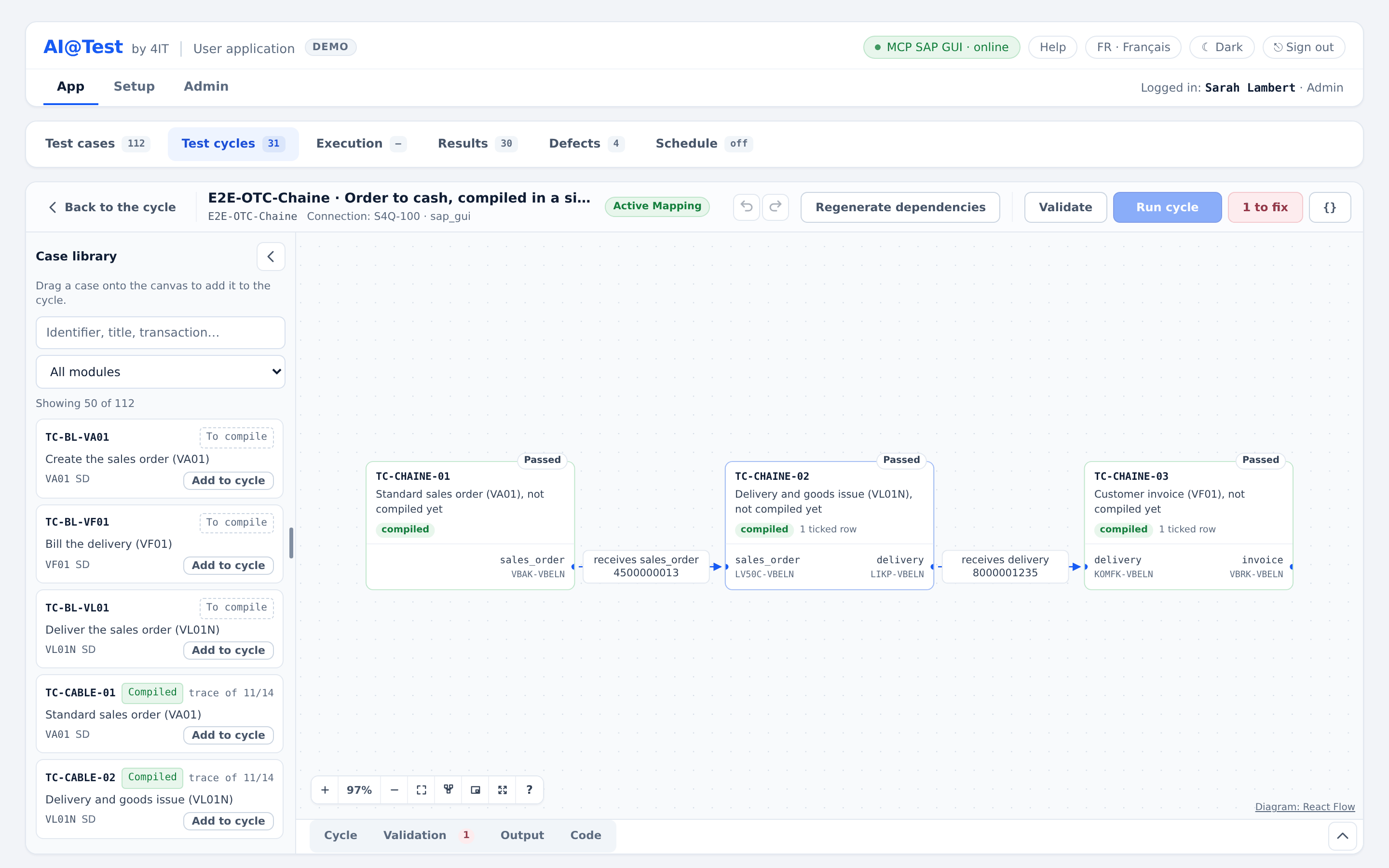
The areas of the Designer
| Area | What it does |
|---|---|
| Toolbar | "Back to the cycle", the cycle name and connection, the Mapping state, "Undo" and "Redo", "Generate dependencies" (or "Regenerate dependencies"), "Review proposed Mapping" when there is one, "Validate", "Run cycle" and "{}" ("View code"). |
| Case library | Search the library (identifier, title, transaction…), filter by module, and drag a case onto the canvas, or use "Add to cycle". It does not open for the Auditor. |
| Canvas | One node per case, linked by the Mapping. Cases are grouped by connection. The floating canvas controls: "Zoom in", "Zoom out", "Fit to screen", "Auto layout", "Show the minimap", "Full screen" and the keyboard shortcuts. |
| Bottom panel | One panel whose tabs follow the selection. With nothing selected: "Cycle", "Validation", "Output" (the runs of the last test execution) and "Code". With a case selected, its properties: "General", "Inputs", "Outputs", "Data", "Gherkin", and "Output" filtered on that case; "Open in Test cases" opens the case in a new tab. With a link selected: "Link". |
Compose and chain on the canvas
- Add a case: drag it from the library onto the canvas.
- Remove a case: select it and press Delete. The confirmation names the Mapping links that go with it.
- Link two cases: draw a wire from an output of the upstream case to a variable of the downstream case, or use "Link…" on a variable. The link is added to the Mapping, active at once. A target that would be refused is greyed out.
- Connect to a value…: turns a value written as is in the downstream case into a variable fed by an output of the upstream case. A compiled downstream case then has to be recompiled.
- + output: declares an output of a case not compiled yet, proposing what the case captures.
- Links proposed by the agent: "Generate dependencies" runs the rule, then the agent, whose links are drawn dashed, each with its rationale and confidence. "Accept" adds a link; "Reject" removes it from the proposal and cannot be undone.
- Data: the "Data" tab ticks and unticks the rows of the selected case without leaving the canvas. "Fetch and manage data in Test cycles" opens the full data view.
Most actions can be undone with "Undo" (Ctrl+Z) and redone with "Redo" (Ctrl+Shift+Z). A rejected agent link cannot be undone, nor an action that rewrote a case: the screen then says "not undoable" and points to the case's history.
Validate and run
- "Validate" (Ctrl+Shift+V) checks the cycle without running it or writing anything. The "Validation" tab lists each finding, as a "Refusal", a "Warning" or an "Information", attached to its case or link on the canvas. For example: a Mapping still proposed or outdated, an archived case, a broken link, or a case that "will compile at launch: it has no trace yet". With nothing to report: "No issues: the cycle can run."
- "Run cycle" launches the cycle, without data adaptation. It is greyed out while the validation refuses the run, with the number of findings "to fix". Once started: "Run EX-… started: follow it in Execution", with "Follow in Execution".
- On a selected case, "Run this case" and "Recompile" run or recompile it. Its node shows it live (compiling or running, its duration and its current step), and the "Output" tab follows the run.
- After a test execution, the canvas shows the outcome of each case and what each link passed on.
- "{}" ("View code") shows the cycle as read-only YAML (its cases, their compilation, their ticked rows and the Mapping links). "Copy" puts it in the clipboard.
Keyboard shortcuts
Outside an input field, "?" opens the cheat sheet.
| Key | Action |
|---|---|
| Esc | Deselect the selected case or link, then exit full screen |
| Shift+1 | Fit to screen |
| + / − | Zoom in / Zoom out |
| / | Go to the library search |
| Ctrl+Shift+V | Validate the cycle |
| Delete | Remove the focused case or link |
| Arrow keys | Move the focused case (Shift: further) |
| Enter | Select the focused case or link |
| A / R | Accept / Reject the focused agent link |
| Ctrl+Z / Ctrl+Shift+Z | Undo the last action / Redo the undone action |
Duplicate a cycle
"Duplicate" creates a new Draft cycle, named "Copy of name" by default, on the connection you choose. It takes the cases in their order, the cycle data and the Mapping, without the test executions or the results. On another connection, cases compiled elsewhere are not carried over: the confirmation names them, and "+ Add cases" can add them back, recompiling them. An archived cycle must be restored before it can be duplicated.
Archive and restore a cycle
"Archive", in the detail of the cycle, asks for confirmation: "It is archived, never deleted: its test executions stay in Results." What is kept:
- its cases, in the cycle and in the library (nothing is unlinked);
- its test executions, their runs and their results, in Results;
- its defects and its audit trail;
- the cycle itself, folded under "Archived cycles", where "Restore" brings it back as it was.
While it is archived, a cycle can be neither run nor composed. Archiving is refused while the cycle has a run in progress or a launch waiting in the queue, and while an active schedule targets it (deactivate the schedule first). Archived cycles can also be found, read and restored in Admin › Archive.