⚙️ Administration
The Admin prepares the instance for the people who test: the connection to the SAP test system, the test accounts the execution agent logs on with, and the users who sign in. Everything happens in the Admin tab. An Admin also has every action of a Tester, whose pages describe the testing itself.
The LLM spending caps, the execution agents and their drivers, the hub account, the support contact and the first Admins are set when the instance is deployed, not from the screen. To change one, write to support. The Instance card of the Admin tab shows the current values.
The Admin tab at a glance
The left column lists the Admin views, most of them with a counter, followed by three cards: Platform, Instance LLM spending and Instance (the last two show to Admins only). The selected view opens on the right. At the bottom, the Agreed vocabulary card recalls the words of the Admin: connector, connection, execution agent, test account, app user and trace (the Glossary page defines them).
| View | Opens to | What it holds |
|---|---|---|
| Connections | Admin | The SAP systems where cases are compiled and replayed |
| Test accounts | Admin | The SAP accounts the execution agent logs on with |
| Recording stations | Admin, when recording from SAP GUI is enabled on your instance | The workstations where a person records a case in SAP GUI |
| Users | Admin | Who signs in to AI@Test, and with which role |
| Archive | Admin, Tester, Auditor | Archived cycles and cases, read-only and restorable |
| Audit | Admin, Tester, Auditor | Every action: who did what, and when |
A Tester or an Auditor opens the Admin tab on the Archive and the Audit only, and lands on the Audit.
Set up an instance, in order
- Declare the connection: Admin › Connections, "+ New connection".
- Create the test accounts: Admin › Test accounts, "+ New test account".
- Declare the users: Admin › Users, "+ New user", then assign them to the AI@Test application in Microsoft Entra ID.
- Declare the recording stations, if your instance offers recording from SAP GUI: Admin › Recording stations.
- Watch the platform: the Platform and Instance LLM spending cards, and the Audit.
Connections
A connection is a connector pointed at a precise SAP system: its host, instance, client and logon language. It names the system where the AI agent compiles the cases and where they are replayed. Without a connection, no cycle can be created.
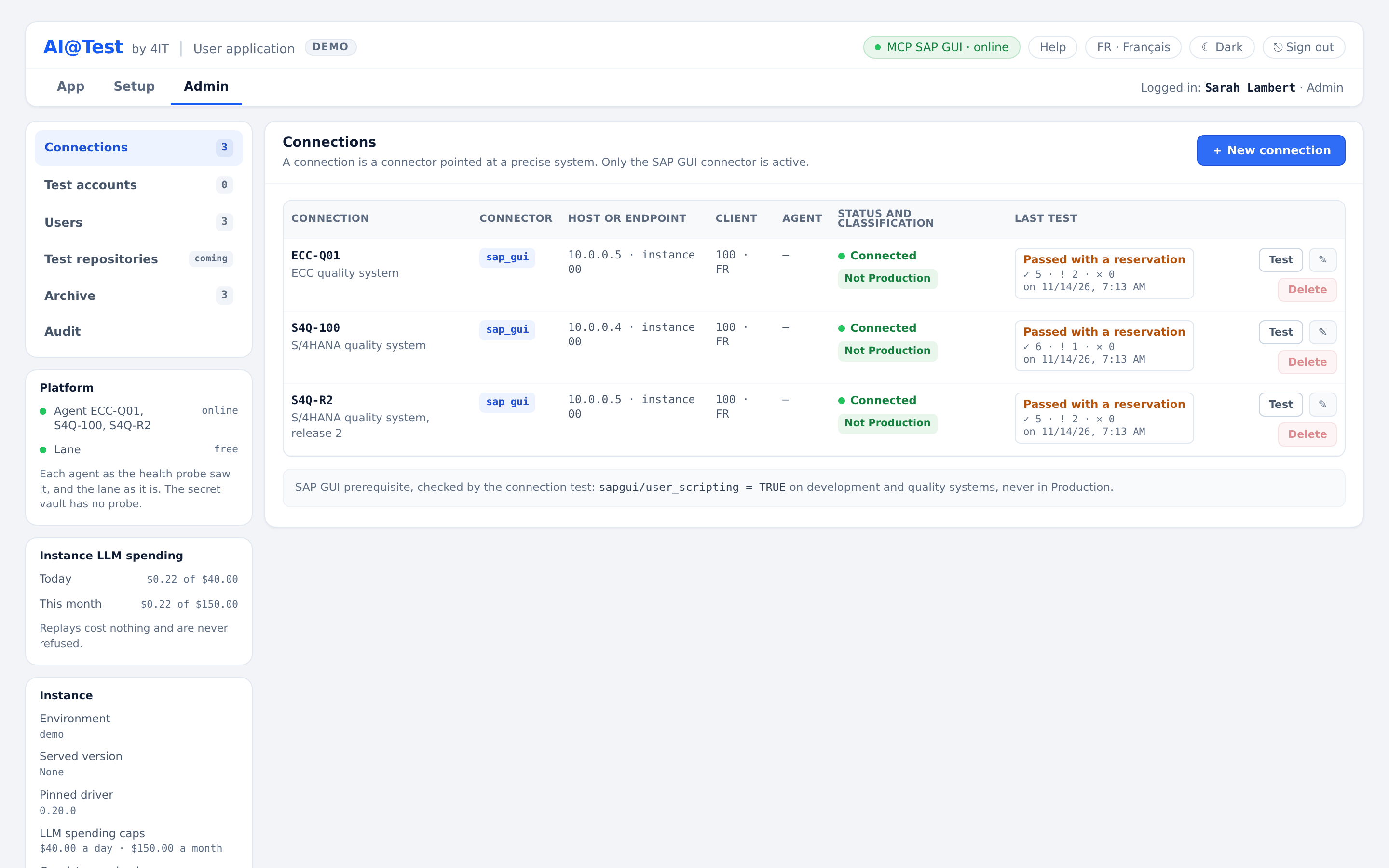
The connections list
| Column | What it shows |
|---|---|
| Connection | The name and id of the connection |
| Connector | The driving technology: SAP GUI |
| Host or endpoint | The SAP host and its instance, and the SAP router when there is one |
| Client | The SAP client and the logon language |
| Agent | The execution agent that drives SAP GUI for this connection |
| Status and classification | Whether the last test passed, and what it read of the SAP client category |
| Last test | "Never tested", or the date of the last test with its count of passed, warning and failed checks; open it to read each check |
| Actions | "Test", edit (✎) and "Delete" |
Under the list, the screen recalls the SAP GUI prerequisite that the connection test checks: sapgui/user_scripting = TRUE on development and quality systems, never in Production.
Status and classification
| Status | Meaning |
|---|---|
| Connected | The last connection test had no failed check |
| Disconnected | The connection was never tested, its last test failed, or it has not been tested since its target parameters changed |
| Unreachable | Its execution agent is offline: no run starts on it before it is back |
| Classification | Meaning |
|---|---|
| Production | The last test read client category P: no run and no check. A test that reads a non-Production category releases it. |
| Not Production | The last test read a non-Production category |
| Undetermined | The last test could not read the client category: check table T000 before use, under your responsibility |
| Never read | No test has read the client category yet: no run goes through until a test reads it |
A failed test does not stop runs by itself. What stops them is a Production or never-read classification, or an execution agent that is offline.
Create a connection with the wizard
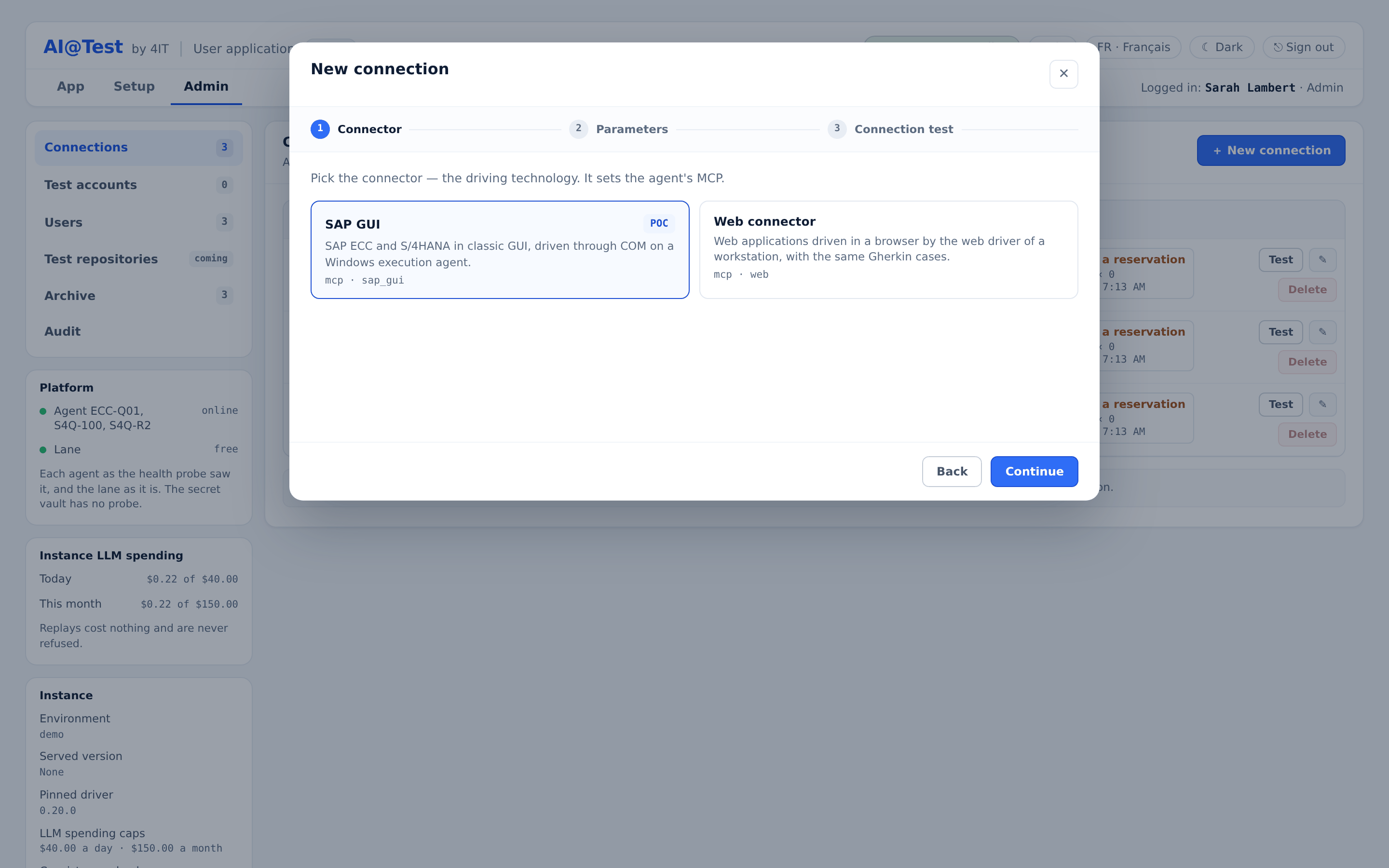
Click "+ New connection". The wizard has three steps, Connector, Parameters and Connection test; "Continue" and "Back" move between them.
Step 1: Connector. Pick the driving technology; it sets the MCP server of the execution agent. Choose SAP GUI: SAP ECC and S/4HANA in classic GUI, driven through COM on a Windows execution agent.
Step 2: Parameters. Enter the logon parameters and the execution agent.
| Field | What to enter |
|---|---|
| Id (optional) | Letters, digits and dashes. Without an id, the hub derives it from the name, and it refuses an id already taken. It never changes. |
| Name | A readable name, such as "Acceptance S/4HANA" |
| Host | The SAP application server |
| Instance (sysnr) | The SAP system number |
| Client | The SAP client |
| Logon language | A one-character SAP key (E, D, F…) or a two-letter ISO code (EN, DE, FR…) |
| SAP router (optional) | The SAP router string, when the system is reached through one |
| Company code (optional) | The company code whose open period dates the cases; empty, 1010. The connection test reads its period and its fiscal year. |
| Execution agent | The name that identifies the agent; it routes nothing |
| Driver URL (MCP) (optional) | Empty: the hub's driver. Only a driver the hub declares is accepted. |
The execution agent is a Windows machine where SAP GUI is installed and the SAP GUI driver runs. One agent drives several connections, one session at a time.
"Go through a remote agent" connects an execution agent that replays with its own account. Enter its "Agent /replay URL (remote)", the "Test account (agent ref.)" that the agent resolves in its own vault, an optional "Explicit connection string", and its "Agent token", encrypted when saved and never shown again. For such a connection, the hub sends no SAP password for the replays; its compilations still run from the hub, with a test account or the hub account. Since the hub does not open the agent's session, the connection test reports the checks that need a session as warnings, and a never-read classification does not hold its runs back.
Step 3: Connection test. The test runs before saving, and writes nothing.
- In "Account tested", keep "The replay account (resolved by the hub)", or pick one of the connection's test accounts. Testing with a colleague's personal account is refused.
- Click "Run the test". Each check appears with its outcome: passed, warning or failed.
- Read the verdict, then click "Save connection".
| Verdict | What happens |
|---|---|
| Test passed: no check failed | The connection can be saved |
| Test passed with reservations | A warning does not block saving |
| Checks failed | Saving is still allowed: only a system classified as Production is refused |
| System classified as Production | Saving is refused |
On save, the hub runs the test again on the saved configuration and keeps its status and classification.
Test accounts belong to a saved connection, so the wizard tests with the replay account: the hub account, if your instance has one. If no test could log on, the classification stays "Never read" and no run goes through. Create the test accounts, then click "Test" in the connections list.
The connection test, check by check
The checks run in order. A check whose prerequisite failed says "not run" and counts as failed: nothing is ever green by default. A malformed logon language, an incomplete remote agent or an unusable account (no secret, or a secret that no longer decrypts) refuses the test before any call, with a single failed line.
The hub writes the name and the detail of each line itself: in this version, they can appear in French even when your interface is in English. The table below describes what each line checks.
| What is checked | What it verifies |
|---|---|
| The agent is reachable | The driver of the execution agent answers. A degraded agent gives a warning with its reason; no answer is a failure. |
| SAP GUI is detected | When the agent answers, the line gives the version and build of its driver. |
sapgui/user_scripting = TRUE | A session driven through automation actually opened. It is never inferred from an indirect reading. |
| Logon | The account tested opens a real, fresh session on the declared client and logon language, and the session proves it is alive. The line names the account by its kind (shared test account, personal test account or hub account), never by its login. A reused session gives a warning: its password was not presented to SAP. A session on another client or in another language fails, and says so. |
| Screen reading and status bar | The hub reads the screen of the session the test opened: its program and screen number. |
| Open period of the company code | Only when the connection names a company code: the open period and fiscal year are read the way a replay will read them. |
| System classified as Production | The client category (table T000) is read through ADT when ADT serves the same system, otherwise through the driver. Category P fails. Another category is shown as a warning that names it. An unreadable category gives the warning "undetermined": check T000 before use. |
| Pinned driver | The agent serves exactly the driver version and build the hub pins. This check comes after the others, so that a mismatch does not hide the rest of the diagnosis. |
The results of a test never show a password, nor the login of an account the hub resolved.
A Production system is refused
When the connection test reads client category P, the wizard says "System classified as Production: saving is refused." A saved connection whose last test classified it Production gets no run and no Consistency check, until a test reads a non-Production category. An "Undetermined" classification is a warning, never a refusal: checking table T000 is then your responsibility.
Test, edit or delete a saved connection
- "Test" runs the connection test again on the saved connection and keeps its new status and classification. The message says whether the test passed, passed with a reservation, or failed.
- Edit (✎) opens the same wizard. Changing the logon language makes the traces compiled in the former language stale: their cases recompile, in agent mode, at their next run. The wizard says how many traces are concerned before you save.
- "Delete" asks for confirmation. The connection leaves the list and its id is never reused. The hub refuses while a non-archived cycle names the connection, or while it still has test accounts.
The wizard also shows a Web connector, for web applications driven in a browser with the same Gherkin cases. Admin › Connections states that only the SAP GUI connector is active, and this documentation covers SAP GUI. Testing web applications is on the roadmap.
Test accounts
A test account is the SAP account the execution agent presents to the target system. It is distinct from the app user who signs in to AI@Test, and it belongs to one connection.
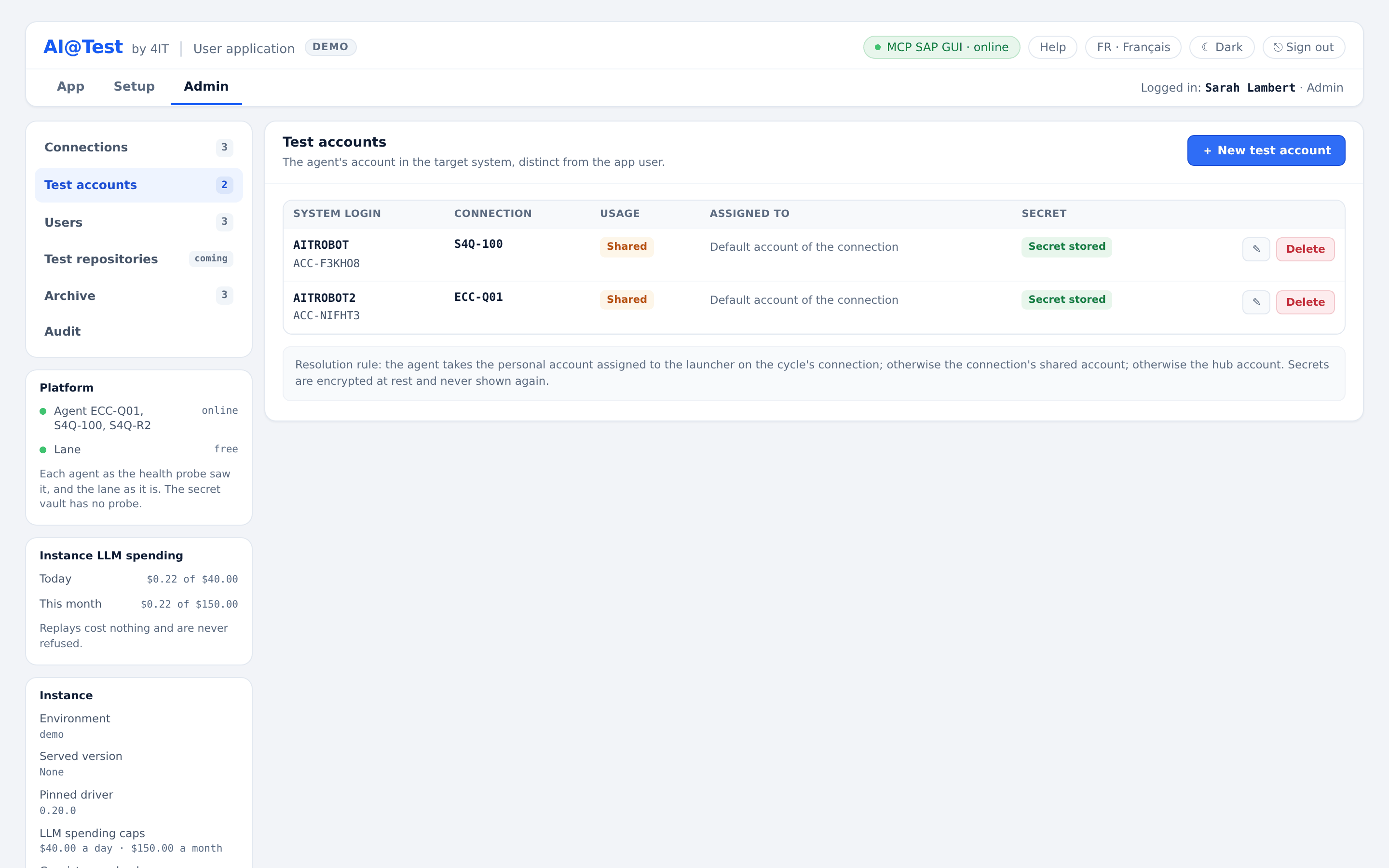
Create a test account
- Open Admin › Test accounts and click "+ New test account". A connection must exist first.
- Choose the Connection.
- Enter the System login, the SAP user (for example TESTUSER01).
- Enter the Secret, its password. It is optional, but an account without a secret refuses its runs. "Show the secret typed" works only while you type, before saving.
- Choose the Usage: Shared or Personal.
- Click "Save account".
Shared or personal
| Usage | Meaning |
|---|---|
| Shared | The connection's default account: at most one per connection |
| Personal | Assigned to users: it comes first for their runs |
Resolution rule. For a run, the agent takes the personal account assigned to the launcher on the cycle's connection; otherwise the connection's shared account; otherwise the hub account. Without any of them, runs are refused. A scheduled run never uses a person's personal account: it takes the shared account, otherwise the hub account. The hub account is set when the instance is deployed; the Instance card shows its SAP user, never its password.
Assign an account
Click "Assign" on an account. In the "Assign account" window, tick the app users who get it, then click "Save assignment". Assigning replaces the whole list, and a user has at most one personal account per connection. Checking "Default shared account of the connection" makes the account the shared one: it then serves any user without a personal account on this connection, and is no longer assigned.
The secret: encrypted, never shown again
- The secret is encrypted when saved and never displayed again: not in Admin, not in the audit, not in a log, and it is never sent to the AI model.
- The Secret column reads "Secret stored", "No secret" or "Unreadable secret". An account without a secret refuses its runs and its test, with no fallback on another account. An unreadable secret no longer decrypts: type it again.
- When you edit an account, leave the secret empty to keep it, as long as the account keeps its system login and its connection. Changing either erases the secret, which you then type again.
- An unusable personal account does not hand over to the shared account: the run is refused and says how to fix it.
- The system login stays in Admin. Runs, logs and the audit name the account by its kind (shared test account, personal test account or hub account).
Delete an account
Before you confirm, "Delete" names the account the runs will fall back on: another account of the connection, or the hub account. The deletion is written to the audit.
Users and roles
An app user is someone who signs in to AI@Test with their Microsoft Entra ID identity, with a role. Users are independent of the SAP test accounts. AI@Test keeps no password and no MFA: Entra ID says who, the role says what.
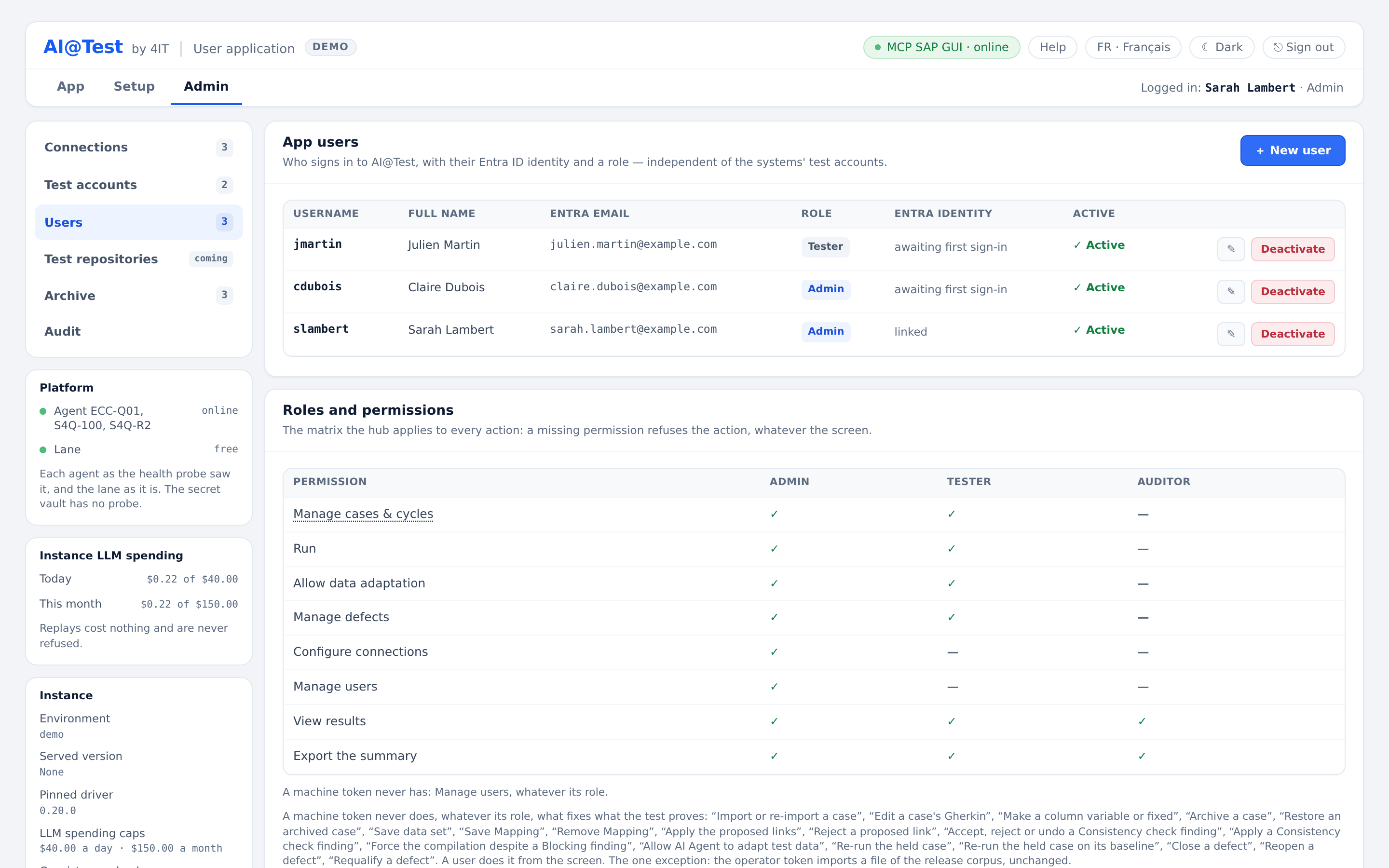
Give someone access: declare, then assign in Entra
Access opens in two steps.
- In Admin › Users, click "+ New user", fill in the form below, then click "Create user".
- In Microsoft Entra ID, assign the user to the AI@Test application (Enterprise applications › Users and groups). The form recalls the name of the application, and the admitted email domains, when the instance sets them.
| Field | What to enter |
|---|---|
| Username | A short identifier, such as mdupont |
| Entra email | The address Entra returns at sign-in; it never changes |
| Full name | The person's name |
| Role | Admin, Tester or Auditor |
The user reads "awaiting first sign-in" until their first sign-in. Their Entra identity is then linked, and only that identity recognizes them afterwards. If a user stays pending, check that they are assigned to the AI@Test application in Entra. An address outside the admitted email domains is refused, since it would never get in.
Roles
| Role | What it does |
|---|---|
| Admin | Connections, test accounts and users, plus every action of a Tester |
| Tester | Import, execution, defects |
| Auditor | Read-only and export: the screen shows no write action to this role, and the hub refuses any attempt |
The roles and permissions matrix
The Roles and permissions card shows the matrix the hub applies to every action: a missing permission refuses the action, whatever the screen shows, and the refusal is written to the audit.
| Permission | Admin | Tester | Auditor |
|---|---|---|---|
| Manage cases & cycles | Yes | Yes | No |
| Run | Yes | Yes | No |
| Allow data adaptation | Yes | Yes | No |
| Manage defects | Yes | Yes | No |
| Configure connections | Yes | No | No |
| Manage users | Yes | No | No |
| View results | Yes | Yes | Yes |
| Export the summary | Yes | Yes | Yes |
"Manage cases & cycles" covers importing cases and editing them in Details; creating, duplicating and composing cycles; tags, test data and Mapping; applying, accepting or rejecting Consistency check findings; archiving and restoring cycles and cases; generating and storing the user guide of a case; and recording a case in SAP GUI, when your instance offers it.
Deactivate and reactivate
"Deactivate" removes a user's access to AI@Test, open sessions included. The user stays named in the audit and in the test executions: users are never deleted. The hub refuses to deactivate the last active Admin. "Reactivate" gives the user their role back.
Recording stations
A recording station is where a person records a case in SAP GUI, under their own SAP account: the recorder of their Windows session, which the hub reaches by its URL and its token. It is never the driver of an execution agent.
Recording from SAP GUI is enabled per instance. When it is not, this view does not appear.
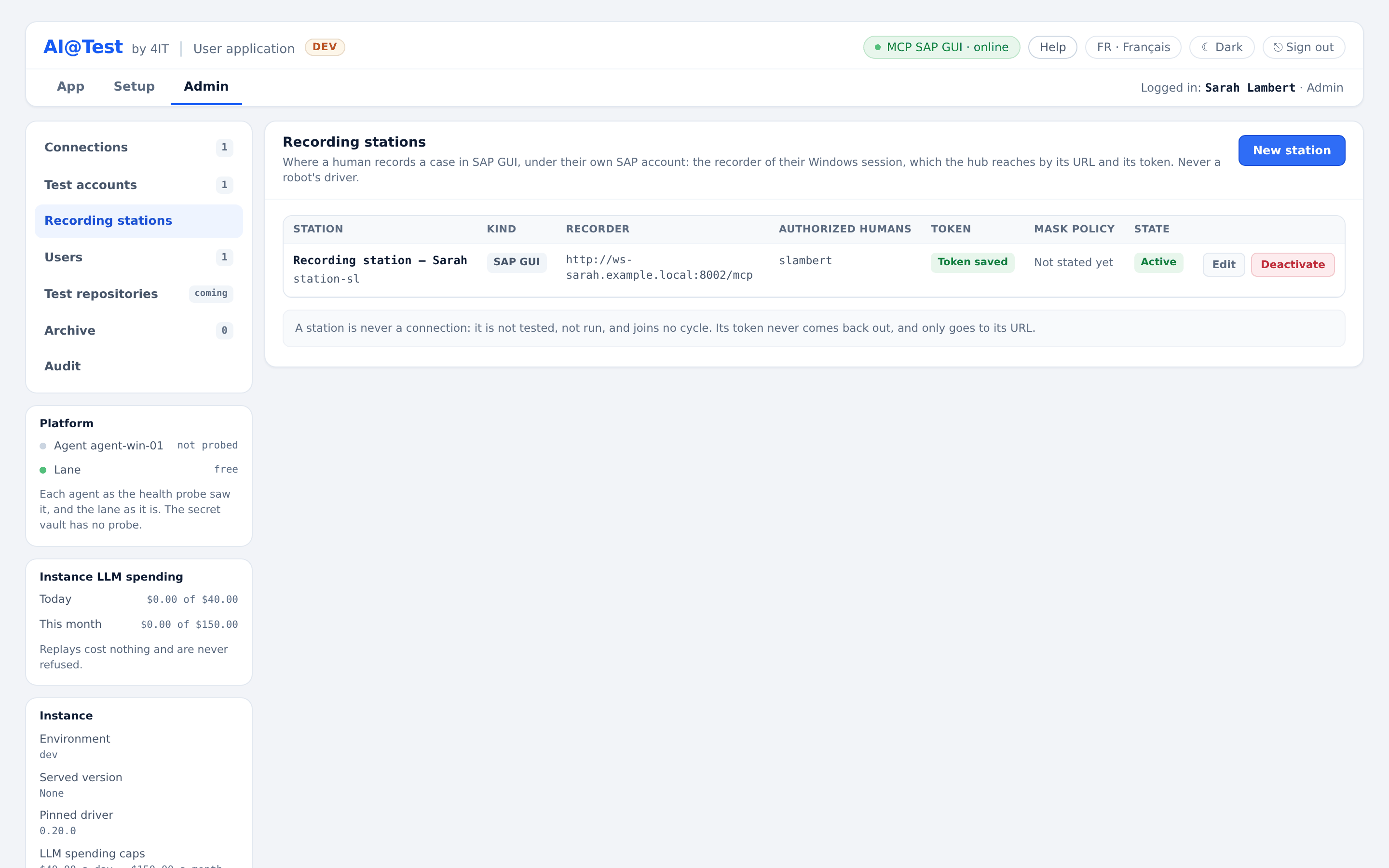
Declare a station
- Click "New station".
- Fill in the form, then click "Save".
| Field | What to enter |
|---|---|
| Identifier | Letters, digits, dot, dash or underscore; it does not change afterwards |
| Name | A readable name for the station |
| Station kind | SAP GUI: the SAP GUI recorder of the person's Windows session. The kind does not change afterwards. |
| Recorder URL | The MCP endpoint of the recorder in the person's Windows session; never the driver of an execution agent |
| Token | Encrypted as soon as it is saved and never shown again; it only goes to this station's URL. Changing the URL removes it. |
| Authorized humans | The hub users who record on this station, under their own SAP account. Declare them first in Admin › Users. |
The list shows each station with its Kind, Recorder, Authorized humans, Token, Mask policy and State. The station's recorder states its mask policy when a recording starts; none shows before the first recording.
- A station is never a connection: it is not tested, not run, and joins no cycle.
- Only the humans a station declares can record on it.
- "Deactivate" stops new recordings on the station; a recording in progress goes on until it stops. "Reactivate" opens the station again at any time.
Audit
The Audit trail tells who launched, approved or configured what. It is test evidence, not a technical log.
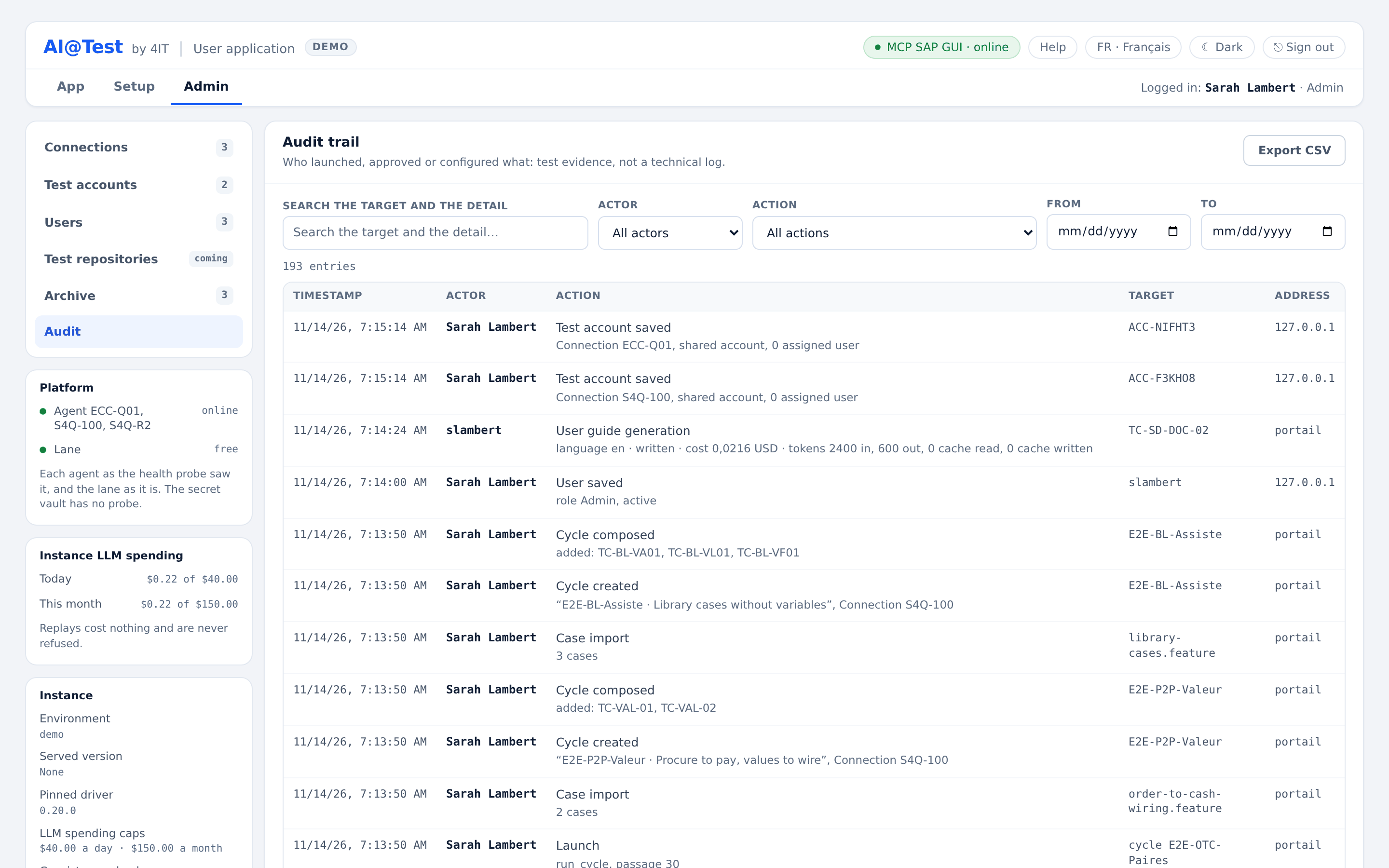
What it records
Every sensitive action is written to the trail: refused sign-ins and actions refused for a missing permission; connections saved, tested and deleted; test accounts saved, assigned and deleted; users saved, deactivated and reactivated; case imports and Gherkin edits; cycles created, composed, archived and restored; launches, queueing and stops; schedules; defects created, edited, closed and retested; Consistency checks; recordings in SAP GUI; and exports. The actor is a user, a machine token, or a product actor such as the AI agent or a scheduled run.
The trail only grows: entries are added, never changed. It never holds a password, a token, the login of a test account, or the SAP connection string.
Read, filter and export
- Columns: Timestamp, Actor, Action, Target, Address.
- Filters: search the target and the detail; Actor; Action; From and To dates; "Clear filters". The trail is paginated ("‹ Previous", "Next ›").
- "Export CSV" follows the filters shown and states its scope at the top. The export is itself written to the trail.
All three roles read the audit and export it.
Archive and restore
An archived cycle or case leaves the lists without losing anything: it keeps its data, its traces, its runs and its audit, and the Archive keeps it, read-only.
- Admin › Archive has two tabs, "Test cycles" and "Test cases", each with its count.
- Each row gives the ID, the Name (a cycle) or Title (a case), when and by whom it was archived, and, for a case, the non-archived cycles that still reference it, or "In no cycle".
- "Open" reads the item read-only; "Restore" brings it back as it was.
- While archived, a cycle can be neither run nor composed, and its test executions stay readable in Results. An import into an archived target cycle is refused: restore the cycle first.
- All three roles read the Archive; restoring requires the "Manage cases & cycles" permission (Admin and Tester).
Platform, LLM spending and instance settings
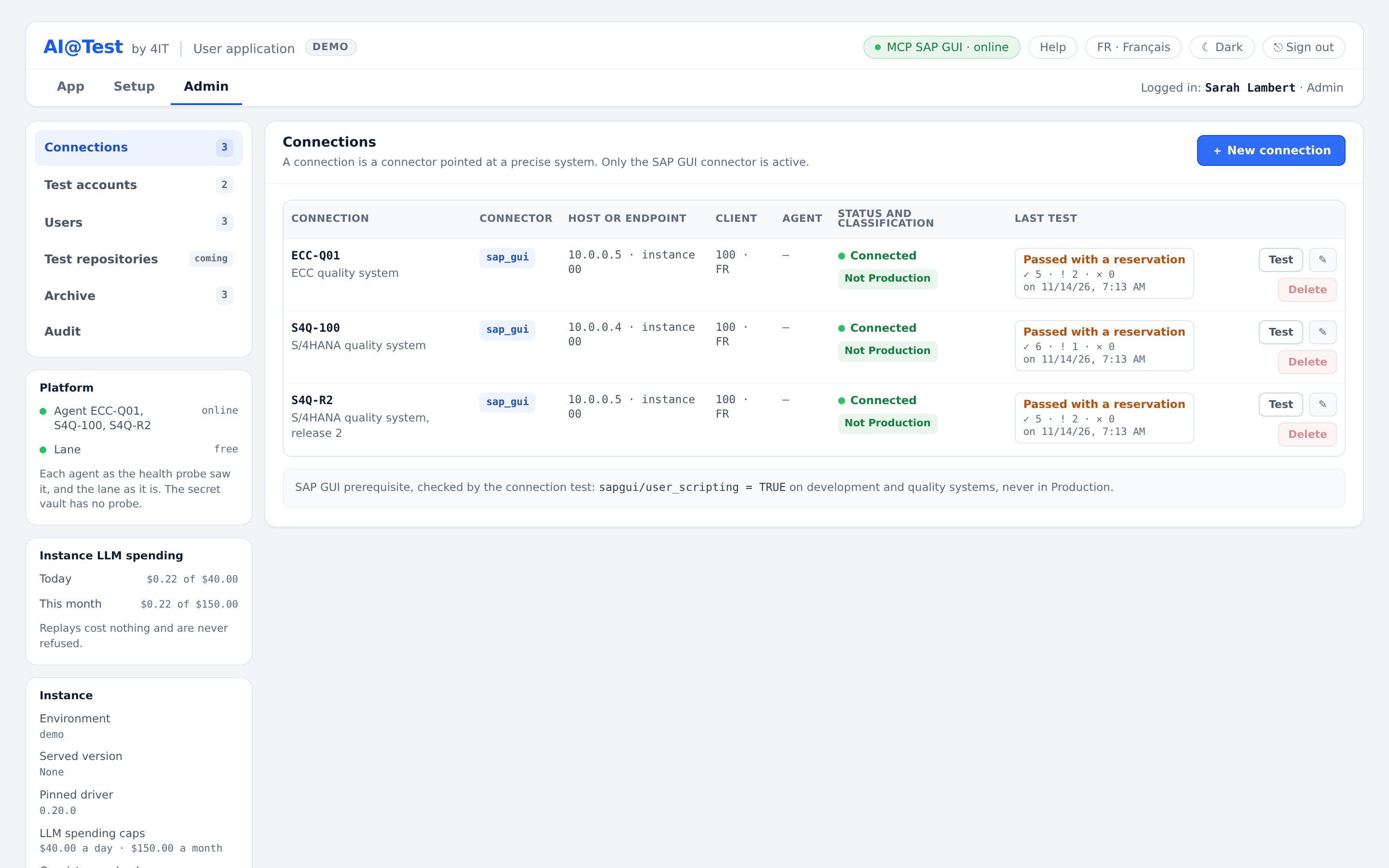
Platform card
The Platform card shows each execution agent as the health probe saw it, and the lane as it is.
- Each agent: online, offline or not probed; the version of its driver and when it was probed; whether each endpoint of its driver is guarded by its token; and any SAP GUI connections on the agent that the driver does not manage.
- The lane: free, busy (with a run or a Consistency check, for example), or "no agent: nothing runs".
The "MCP SAP GUI" pill in the header turns red when an agent stops responding, and its tooltip names the connection concerned. "Not probed" means there is no recent reading: it never stands for a green light. The secret vault has no probe.
Instance LLM spending card
Shown to Admins, the card gives the AI spending of Today and This month, each against its cap. Replays cost nothing and are never refused. When the daily cap is reached, no compilation or Consistency check starts before midnight, hub time; when the monthly cap is reached, none starts before the 1st of next month. A user guide generation is refused as well while a cap is reached. A cap set to 0 closes AI spending until the deployment raises it.
Instance card
Shown to Admins, the Instance card lists, read-only, the settings fixed at deployment: Environment, Served version, Pinned driver, LLM spending caps, Consistency check cap, Hub driver, Other drivers, Hub account, Hub ADT, Entra tenants, Admitted e-mail domains (when the hub knows them) and Support contact. This screen does not change them: to change one, write to support.