🎥 Recording from SAP GUI
"Record in SAP GUI" turns what you do in SAP GUI into a test case. As the screen puts it: "Work in SAP GUI, on your station and under your own account: AI@Test captures your actions and draws the case's steps and their trace from them, without AI. You write the Thens."
The conversion of your actions into steps is deterministic and uses no AI. When the recording is clean, the case can enter the library "already reproducible". Its first execution then validates the recorded trace without AI and costs no tokens. When something cannot be replayed as recorded, you can still import the case "to compile". The AI agent then compiles it at its first execution, like any imported case.
Before you start
- Your role: recording is an action for Admins and Testers, covered by "Manage cases & cycles". The "Record in SAP GUI" button appears in Test cases if your instance offers recording.
- A recording station: an Admin declares the station in Admin › Recording stations and lists you among its "Authorized humans". A station is the recorder in your own Windows session, never the driver of an execution agent. It is also never a connection: it is not tested, not run, and does not join any cycle.
- A SAP GUI connection: a connection whose last test read its system, outside Production.
- SAP GUI open on the station, under your own SAP account, in the language of the connection. A recording never runs under a test account of the connection, because those accounts belong to the execution agent.
Good to know:
- You can have only one open recording at a time, and a station holds only one open recording at a time.
- A recording does not take the lane, so you can record while runs are playing.
- Only you and the Admins can see your recording and its raw actions.
The three phases
The "Record in SAP GUI" screen goes through three phases, shown at the top: "Prepare", "Record" and "Complete" ("Phase 1 of 3", and so on).
1. Prepare
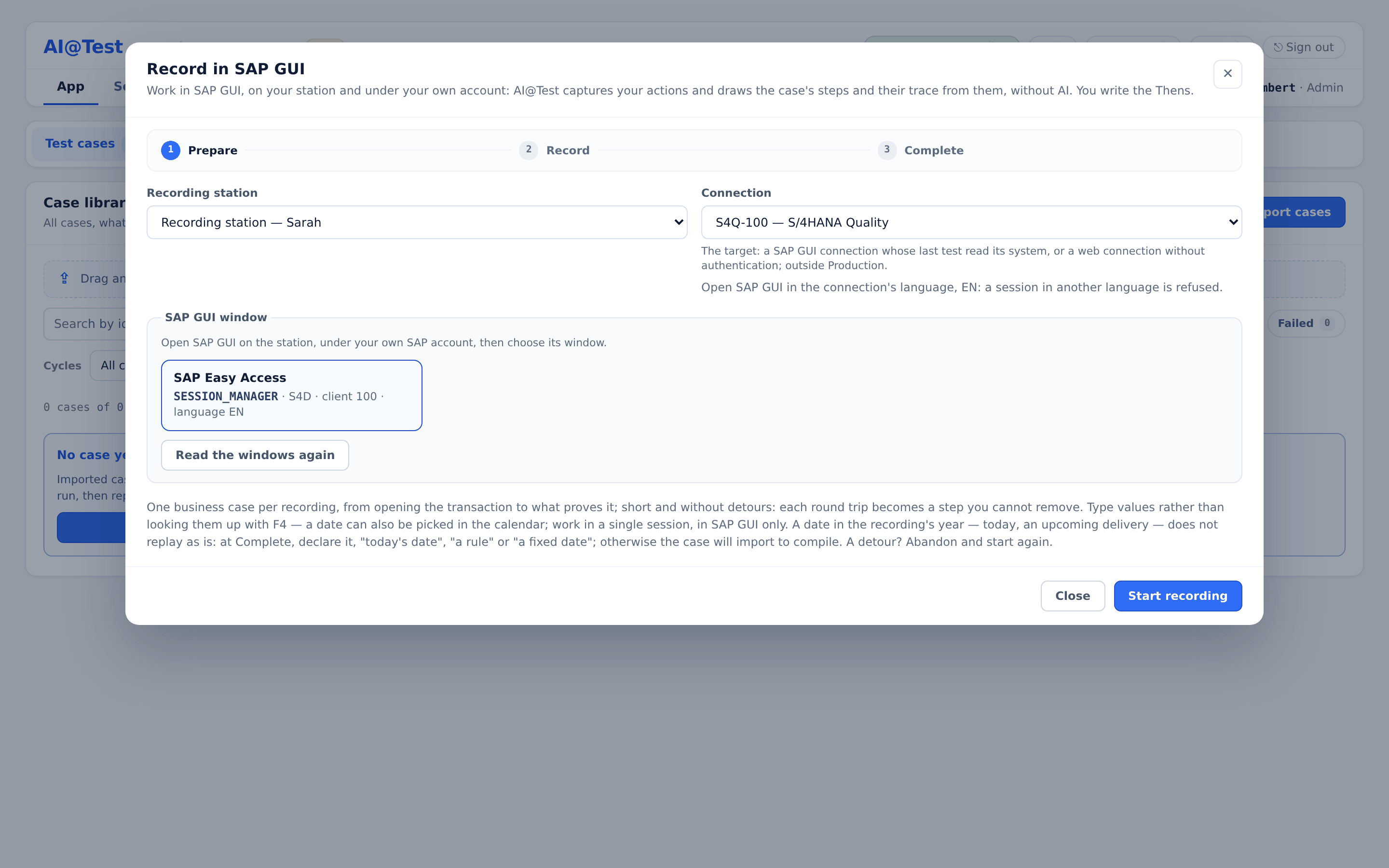
- In Test cases, click "Record in SAP GUI".
- Under "Recording station", choose a station.
- Under "Connection", choose the target connection. A connection you cannot record on is greyed out, with its reason.
- Open SAP GUI on the station, under your own SAP account, then choose its window under "SAP GUI window". Each window shows its system, its client and its language. If your window is missing, click "Read the windows again". Open SAP GUI in the connection's language; a session in another language is refused.
- Read the instructions on screen (see the tips below), then click "Start recording".
If you left a recording unfinished, it appears under "Your recordings to resume". Click "Resume" to continue it.
- Record one business case per recording, from opening the transaction to the result that proves it.
- Keep it short and without detours: each round trip with SAP becomes a step, and a step cannot be removed later.
- Type values rather than looking them up with F4. You can also pick a date in the calendar.
- Work in a single session, in SAP GUI only. Anything done outside SAP GUI is not recorded.
- A date in the recording's year, such as today or an upcoming delivery date, does not replay as is. You will declare it at Complete.
- Took a detour? Click "Abandon" and start again.
2. Record
- The screen first says "Reserved: the recorder is attaching to the window…", then shows that the recording is in progress.
- Play the case in the chosen SAP GUI window. Each action appears on screen as it is collected: "5 action(s) received", "The steps seen so far". Before your first action, the screen says "Waiting for your first round trip with SAP…".
- When the case is played, click "Stop" before you close SAP GUI or your Windows session.
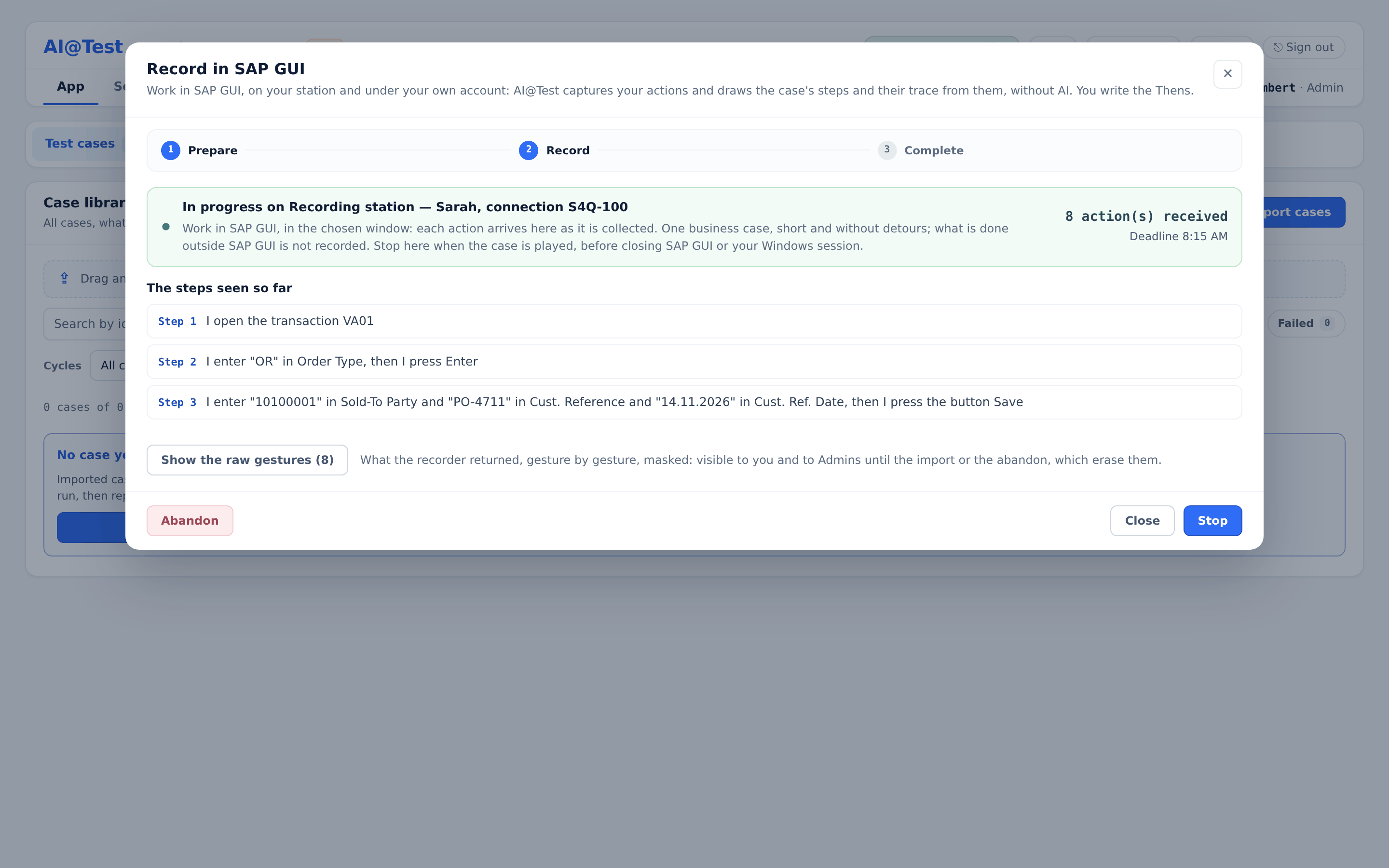
Each recording has a deadline, shown as "Deadline" followed by a time. At its deadline, the recording stops by itself and keeps its actions. "Show the raw gestures" lists what the recorder returned, gesture by gesture, with values masked: password fields, unreadable components, and anything the mask policy covers. You and the Admins can see these raw gestures until the import or the abandon, which erase them.
To give up, click "Abandon" and confirm. As the screen says: "Its actions are erased and nothing enters the library."
If SAP GUI closes or the recorder stops during the recording, the recording is marked lost, with its reason. The screen explains: "What was received stays, and is completed like any other recording."
3. Complete
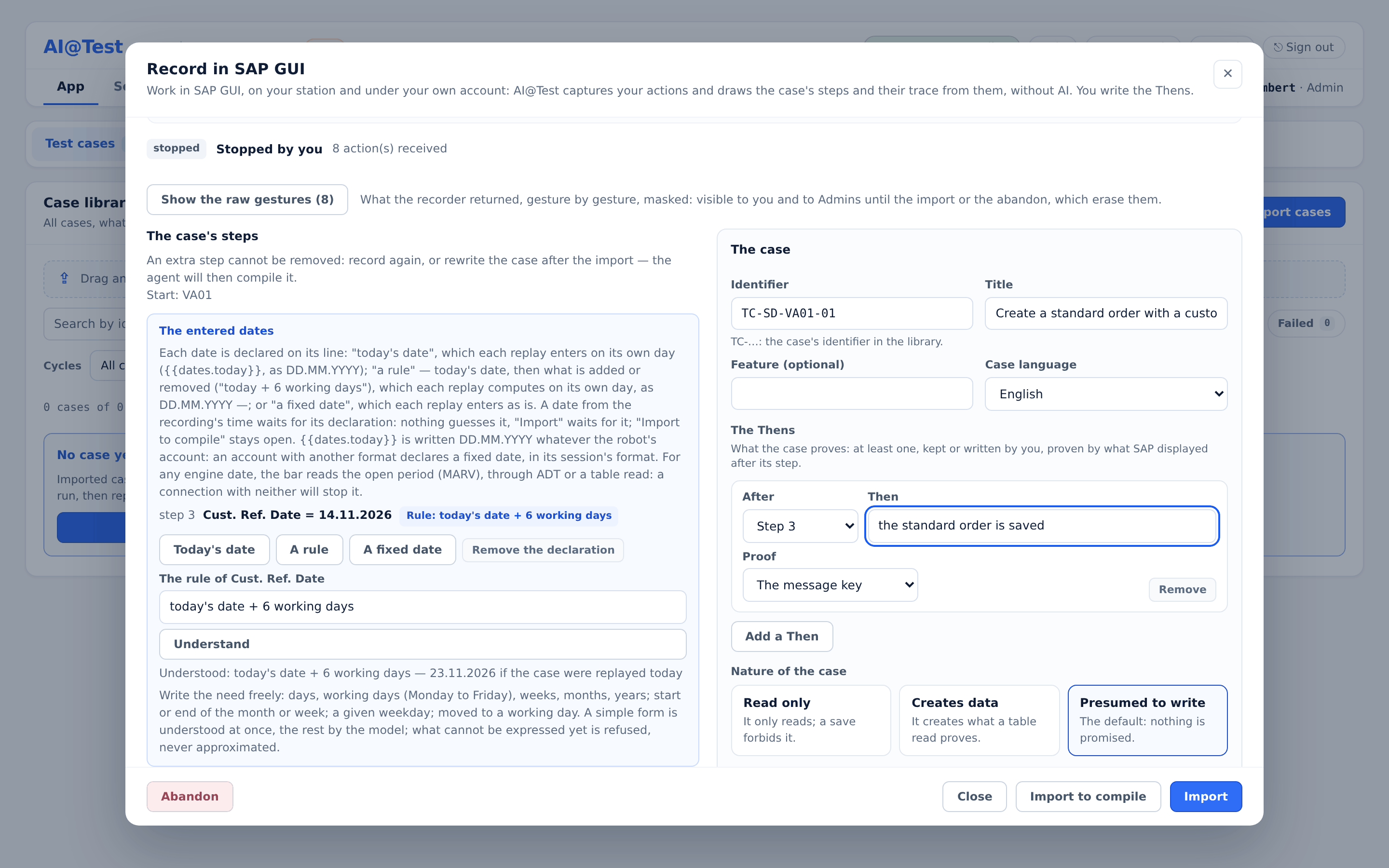
The Complete phase has two columns. On the left, "The case's steps" lists the steps drawn from your actions. On the right, under "The case", you write what the case proves.
Review the steps
Each step shows:
- When: the sentence of the step, in the case language. You can rewrite it without changing its link to the step.
- Transaction: the transaction of the step.
- Entered: the values you typed, with their field labels. A value marked "(prefilled)" was proposed by SAP. A value marked "(bound: the number returned at step 2)" is bound to the document number that an earlier step returned.
- Message: the SAP status bar message.
- Read on screen after the step: what SAP displayed after the step.
"Set-aside actions" counts the noise that does not become a step, such as cursor moves or focus changes. As the screen notes: "An extra step cannot be removed: record again, or rewrite the case after the import — the agent will then compile it."
Say you create a sales order in VA01 and then type its number in VA02. If that number stayed fixed, every replay would change the old order. Instead, AI@Test binds the entered number to the number the earlier step returned, so each replay works on the document it has just created. A document number is never guessed: when a number cannot be bound, the case can only be imported to compile.
Declare the dates
A date typed during the recording is never guessed. "The entered dates" lists each date on its own line, with its step, its field and its value, and a badge: "To declare", "Frozen as is", or the declaration you made. Choose one of three declarations:
| Declaration | What each replay enters |
|---|---|
| Today's date | The day of the replay, as DD.MM.YYYY. |
| A rule | The date the rule gives on the day of the replay, as DD.MM.YYYY, for example "today + 6 working days". |
| A fixed date | The date exactly as you write it, in the format of your SAP session. |
To declare a rule:
- Click "A rule" on the line of the date.
- In "The rule of …", describe your need freely, for example
today + 6 working days. - Click "Understand". AI@Test answers with the rule it understood and an example: "Understood: … — … if the case were replayed today".
A rule can use:
- days, working days (Monday to Friday, without public holidays), weeks, months and years;
- the start or end of the month or week;
- a given weekday;
- a move to a working day.
A simple form is understood at once; anything else is understood by the model, once, when you declare it. A rule that cannot be expressed yet is refused, never approximated. Each replay then computes the date on its own day, without AI.
"Remove the declaration" undoes a choice.
"Today's date" and "A rule" write the date as DD.MM.YYYY. If a date was typed in another format, or the SAP account uses another date format, use "A fixed date", written in the session's format. For a date computed at replay, the bar reads the open period (MARV), through ADT or a table read. A connection that offers neither will stop it.
As long as a date is undeclared, "Import" waits for it; "Import to compile" stays available.
Describe the case
Under "The case", fill in:
- Identifier: the case identifier in the library, such as TC-MMBE-01.
- Title: for example "Stock of material TG11".
- Feature (optional).
- Case language: French or English. The When sentences use this language.
Write the Thens
"The Thens" say what the case proves. You need at least one, kept or written by you, and each must be proven by what SAP displayed after its step.
- The automatic Then: when the case ends with a recognized save, AI@Test proposes a Then, without AI, drawn from the success message of the last save. For example: "the transaction ends with the success message MIGO/012, its document number captured". You can keep, edit or remove it. It does not prove that the data persisted: a case that creates data adds its table read.
- The fields SAP displayed: AI@Test proposes, without AI, the values that a step made appear. Each value you tick becomes a Then proven by that value.
- Add a Then: choose the step it comes "After", write the "Then" sentence, and choose its "Proof": "The message key", "A field value" or "A table read".
A Then must be proven by something SAP did. A value you typed yourself proves nothing, and neither does a value the screen already showed when you arrived at the step: a replay that types the value always reads it back.
Nature of the case and database proof
Declare the "Nature of the case":
| Nature | Meaning |
|---|---|
| Read only | "It only reads; a save forbids it." |
| Creates data | "It creates what a table read proves." |
| Presumed to write | "The default: nothing is promised." |
A case that creates data needs a "Table read" that proves the presence of what it created. You set the "Table" (for example MKPF), its "Filters" and the "Expected fields". A filter takes "A value" or "A message parameter", such as the document number from a step's success message. Filter on that captured parameter, so that the table read points to the exact object the run created. A table read that filters on no captured parameter is flagged, and the import refuses it.
What the hub says
"What the hub says" checks the case after every change. It shows "Nothing is missing." when the case can be imported. Otherwise it names each refusal, for example a proof that relies on a value you entered, or a proof dated in the recording's time.
The Gherkin produced
"The case's Gherkin" shows the case as it will enter the library:
- one When per step, in the case language, with the values you typed in quotes and the labels of their fields;
- a bound number written as what it is, "the number returned at step 2", not as a literal value;
- each declared date written as its phrase, such as "today's date" or "today's date + 6 working days";
- your Thens, in the order of the steps.
The Gherkin carries no technical identifier, and it does not say where the case was recorded or by whom.
Import: "already reproducible" or "to compile"
The Complete phase ends with two buttons:
| Button | What enters the library | What happens at the first execution |
|---|---|---|
| Import | "The Gherkin and its recorded trace": the case is imported "already reproducible". | "The case's first execution validates it, without AI": the full bar, then two consecutive passing replays. On success, the case is compiled with no AI call and no cost. |
| Import to compile | "The Gherkin alone." | The AI agent compiles the case at its first execution, like any imported case. |
After the import, the screen confirms it, for example "Case TC-MMBE-01 imported, already reproducible." Click "Open the case" to see it in the library.
Some points to keep in mind:
- Until its first execution validates the recorded trace, a case imported "already reproducible" shows as "To compile" in the library.
- If the validation of a recorded trace fails, at the bar or on a replay, no trace is kept and no defect is opened. The case stays "To compile", and its next execution has the AI agent compile it.
- A recorded trace holds only for its Gherkin and its connection. If you edit the Gherkin after the import, or run the case on another connection, the AI agent compiles it.
- A new recording imported on the same case replaces its recorded trace.
- With "Import to compile", the Gherkin, including the values you entered, is sent to the model. Before importing, rewrite any When whose value must not be sent there.
When "Import" is greyed out, the screen gives the reason, for example: "Declare each date from the recording's time, on its line: today's date, a rule or a fixed date; otherwise import to compile."
What blocks reproducibility
The Complete phase sorts what the conversion found into three groups.
What prevents "already reproducible"
These blocks keep "Import" greyed out, and each one names its step. The most common ones, and what to do:
| Block | What to do |
|---|---|
| An unrecognized action | Record again, or import to compile. |
| A masked field (password) | A secret is never kept in clear: import to compile. |
| A new SAP session, or an exit from the session | Record again, working in a single session. |
| An unknown starting point | Record again, starting from the opening of the transaction. |
| No round trip recorded | Record again. |
| An action whose element the recorder could not read | Import to compile, or record again. |
| Another transaction after Enter, with no code captured | Import to compile, or record again. |
| A command read as /n followed by a transaction the recording never saw open | Record again, typing /n before the transaction code (/n/… for a namespace), or import to compile. |
| A number an earlier step returned that cannot be bound | A document is never guessed: import to compile. |
| A date from the recording's time to declare | Declare it: today's date, a rule or a fixed date. |
| A recording made by a recorder release the hub no longer pins | Import to compile, or record again. |
| Other blocks, such as an initial screen skipped (/*), a menu outside the main menu bar, a table row targeted without a guard on its key, a position the recorder did not resolve, a tab the screen did not show, or unknown values on arriving at the screen | Record again, or import to compile. |
"This case will import to compile"
Some values from the recording's time are not dates you can declare: a year, a fiscal year, a period, a date joined to its time or without a read label, a grid cell, a chosen row or key. Such values do not replay as is. "Import" stays greyed out, and the AI agent will compile the case at its first execution. This is guidance, not an error.
Good to know
Warnings do not block the import, but they deserve a look:
- A prefilled value, not entered: SAP proposed the value. Check that the replay should rely on it.
- Content SAP GUI does not let be read (HTML page, Office, chart, map): anything done there is not recorded.
- A window outside SAP GUI? Anything done there is not recorded: import the case to compile.
- A slow screen or an unreadable screen: the read of the screen was given up. Prove by a table read, or import to compile.
- SAP refused this step: if it was a detour, abandon and record again.
- A frozen date: the replay will enter it as is.
- A proof without capture: the table read filters on no captured parameter, so it does not point to the object of the run. The import refuses it until you filter on a captured parameter.
If the recording does not start
The screen names the cause. The most common ones:
| Cause on screen | What to do |
|---|---|
| The station's recorder is already recording another session. | Finish or abandon the other recording. |
| SAP GUI recording is already on for this window, by SAP GUI or another client. | Close that SAP session and open a new one. |
| The chosen SAP GUI window is no longer open on the station. | Reopen SAP GUI and read the windows again. |
| The recorder refuses the SAP session's user: nobody is logged on, or it is a forbidden account. | Log on to SAP under your own SAP account. |
| The SAP session is not on the connection's system and client. | Open SAP GUI on the system and client of the connection. |
| The SAP session is logged on under a robot account. | Log on under your own SAP account, never a test account. |
| The SAP server did not let the recording be turned on. | Contact your administrator or support. |
| The station's recorder did not answer. | Contact your administrator or support. |
Recording web applications, through an AI@Test extension in the workstation's Chrome browser, is in preparation. Importing a web case is not available yet, and the screen says so.