AI@CDS Setup Tab: CDS Designer, CDS Manager and SQL Manager
The latest release of the AI@CDS Cloud Application introduces a fully featured Setup tab — a tooling workspace designed for 4IT implementation partners and BI Competency Centres. Three new panels make it significantly faster to create customer-specific CDS views, inspect the full CDS view catalogue, and generate platform-ready SQL from any Business Template or RapidViews CDS layer.
The gap we set out to close
AI@CDS has always been strong at helping business and BI users understand SAP data models — through its interactive diagram viewer, AI Chat, and use-case documentation. What was missing was a productive workspace for the consultants and BI architects who need to act on that understanding: customise a standard template for a specific customer, quickly pull up the source code of a view they are working with, or translate a CDS view into SQL for a cloud platform.
The Setup tab closes that gap with three tools that work together naturally in a typical implementation workflow.
CDS Designer — AI-generated customer variants in seconds
Every 4IT Business Template is a solid foundation, but real-world implementations almost always require customer-specific adjustments. A field that appears in one customer's ERP may need to be surfaced in the CDS layer; a specific calculation, status code, or account assignment field may be needed that is not in the standard template.
Previously this meant opening ABAP Development Tools, copying the source view, manually adding the field, updating annotations, and deploying — a process that takes time and requires deep CDS knowledge.
With the CDS Designer, a partner can:
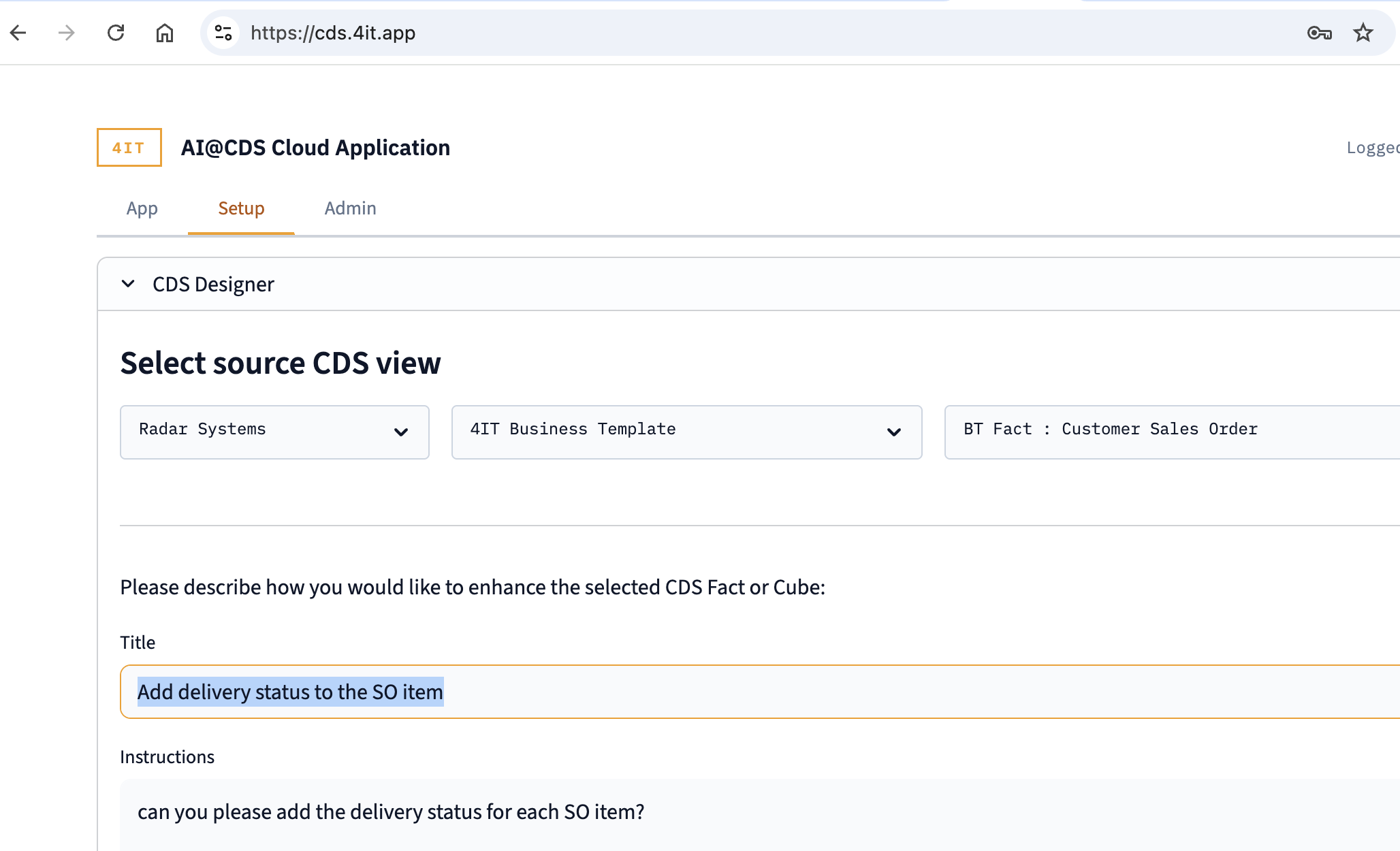
- Select the source CDS view using three dropdowns (customer context → category → view)
- Enter a short title and plain-language instructions describing what needs to change
- Click ▶ Start the Designer
The AI generates a complete, correctly annotated ABAP CDS view — preserving the original structure, all existing annotations, and the naming patterns of the source — and saves it directly to the customer's folder on the Azure File Share.
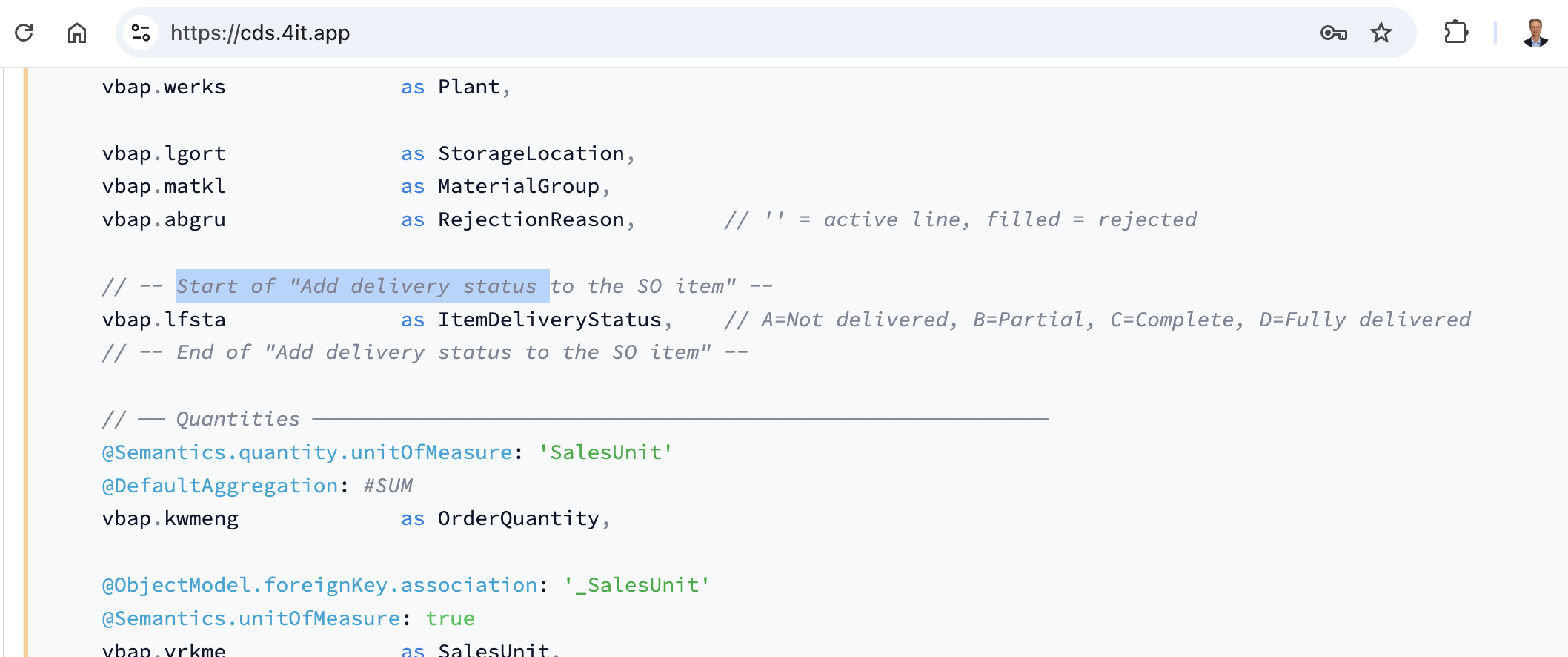
A particularly useful feature is the modification marker convention. Every line of code added by the AI is wrapped between named start and end comments:
// -- Start of "Add delivery status to the SO item" --
vbap.lfsta    as ItemDeliveryStatus,
// -- End of "Add delivery status to the SO item" --
This makes it immediately clear — both in the tool and in any downstream code review — exactly what was changed from the standard template and why. The result is displayed in an editable text area, so the partner can make further adjustments before saving, and the saved file is immediately visible in the App tab for the owning customer.
CDS Manager — your CDS view catalogue at a glance
The CDS Manager provides a searchable, filterable catalogue of all CDS views available for a given customer and category. Selecting a view and clicking Display renders the full source code with syntax highlighting and a one-click copy button.
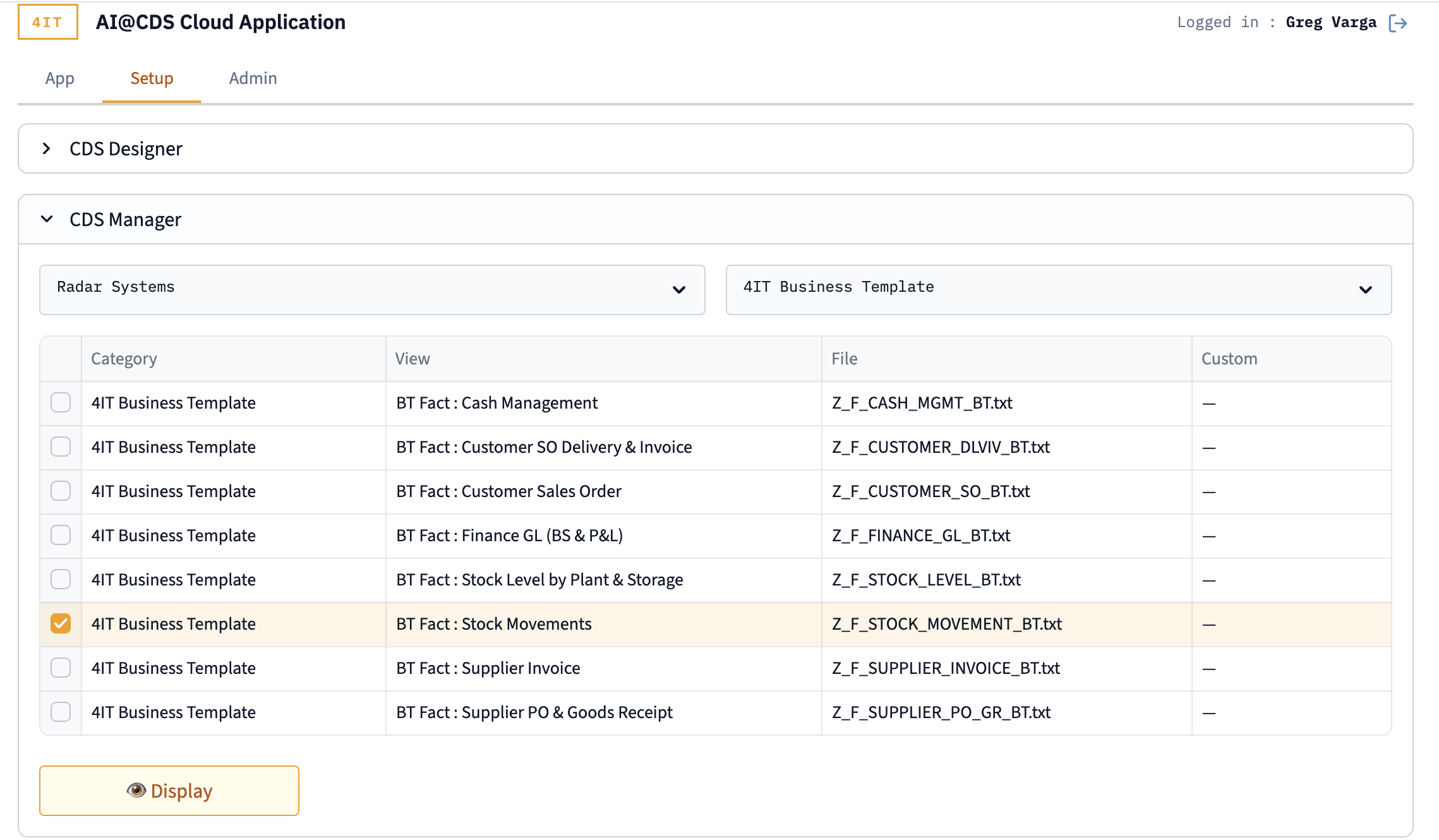
The catalogue table shows four columns for each view: the category, the human-readable view label, the file name on the Azure File Share, and a Custom flag that indicates whether the row is a standard 4IT template or a customer-specific variant created by the CDS Designer.
This is particularly useful during implementation workshops — a consultant can pull up the exact CDS source of any Business Template mid-conversation, show a customer which fields and joins are already available, and identify where a custom enhancement would need to be added.
SQL Manager — zero-effort CDS-to-SQL conversion
The SQL Manager addresses a common friction point in cloud analytics projects: translating ABAP CDS views into executable SQL for Azure Synapse, BigQuery, Databricks, or Snowflake.
ABAP CDS and SQL are fundamentally different languages. CDS uses annotation-heavy syntax, lazy association definitions, ABAP-specific data types, and currency/unit semantics that have no direct SQL equivalent. Doing this translation manually is tedious and error-prone, especially across a full catalogue of Business Templates.
The SQL Manager automates the entire process. Select a CDS view, choose your target dialect, and click ▶ Start Conversion. Within seconds you have a complete, platform-ready SQL file.
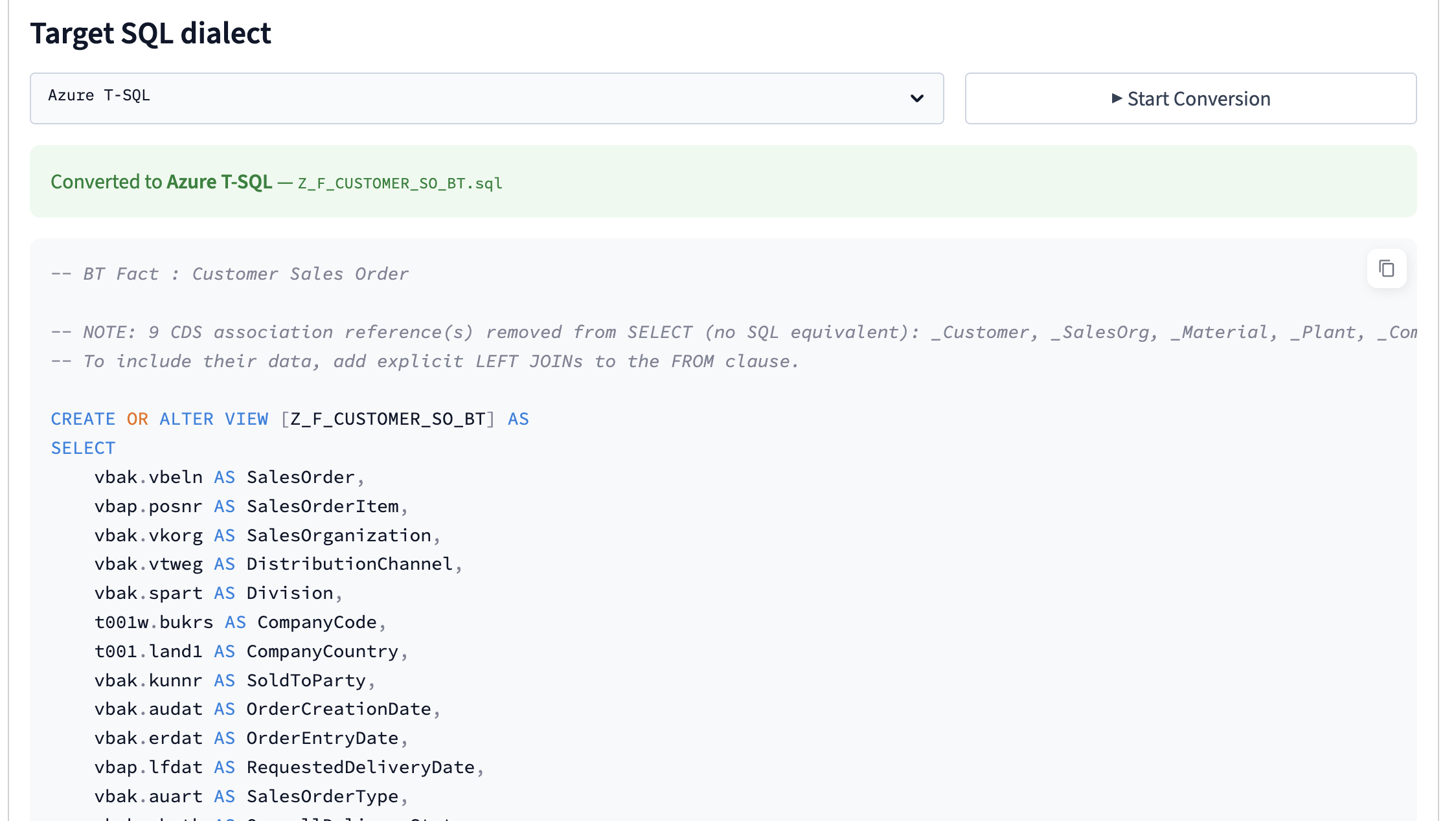
The conversion handles:
CREATE OR REPLACE VIEWsyntax per dialect (bracket quoting for T-SQL, backtick for BigQuery, double-quote for Snowflake)- ABAP data type mapping —
NVARCHARfor Azure,STRINGfor BigQuery,VARCHARfor Databricks and Snowflake, with correct length and precision handling - CDS associations — lazy join definitions that have no SQL equivalent are converted to commented-out
LEFT JOINstatements appended at the end of the SQL, with a clear guide on how to activate them by adding the required fields to the SELECT clause - Annotations stripped and replaced with standard SQL comments
- Currency and unit semantics preserved as regular character/decimal fields
The conversion is performed entirely in Python using rule-based regex transformations — no AI call is made — which means it is fast, deterministic, and produces consistent results for the same input. Conversion rules are managed in a YAML configuration file, making it straightforward to add support for additional dialects or adjust type mappings for a specific platform version.
What this means for implementations
The three tools in the Setup tab represent a step change in how AI@CDS supports the full implementation lifecycle — not just the exploration phase. A partner can now move from "here is what the standard BT contains" to "here is your customer-specific variant, ready to transport" to "here is the SQL view for your Databricks environment" without leaving the browser.
All three panels are available to users with the Partner or 4IT role. Custom views created by the CDS Designer are scoped to the owning customer and never visible to other customers in the application.
Full documentation for the Setup tab is available in the AI@CDS documentation.