⚙️ AI@Flows Config
The Config page holds everything the other pages depend on: where the data is, who you are, and the shared lists (SAP systems, tags, business domains, reviewers).
Settings in sections 3 to 6 are shared: they are saved in the _config subfolder of the Review output folder, so every user of the same folder sees them. Each section shows where its file is saved and when and by whom it was last changed. To change shared settings, you must be signed in.
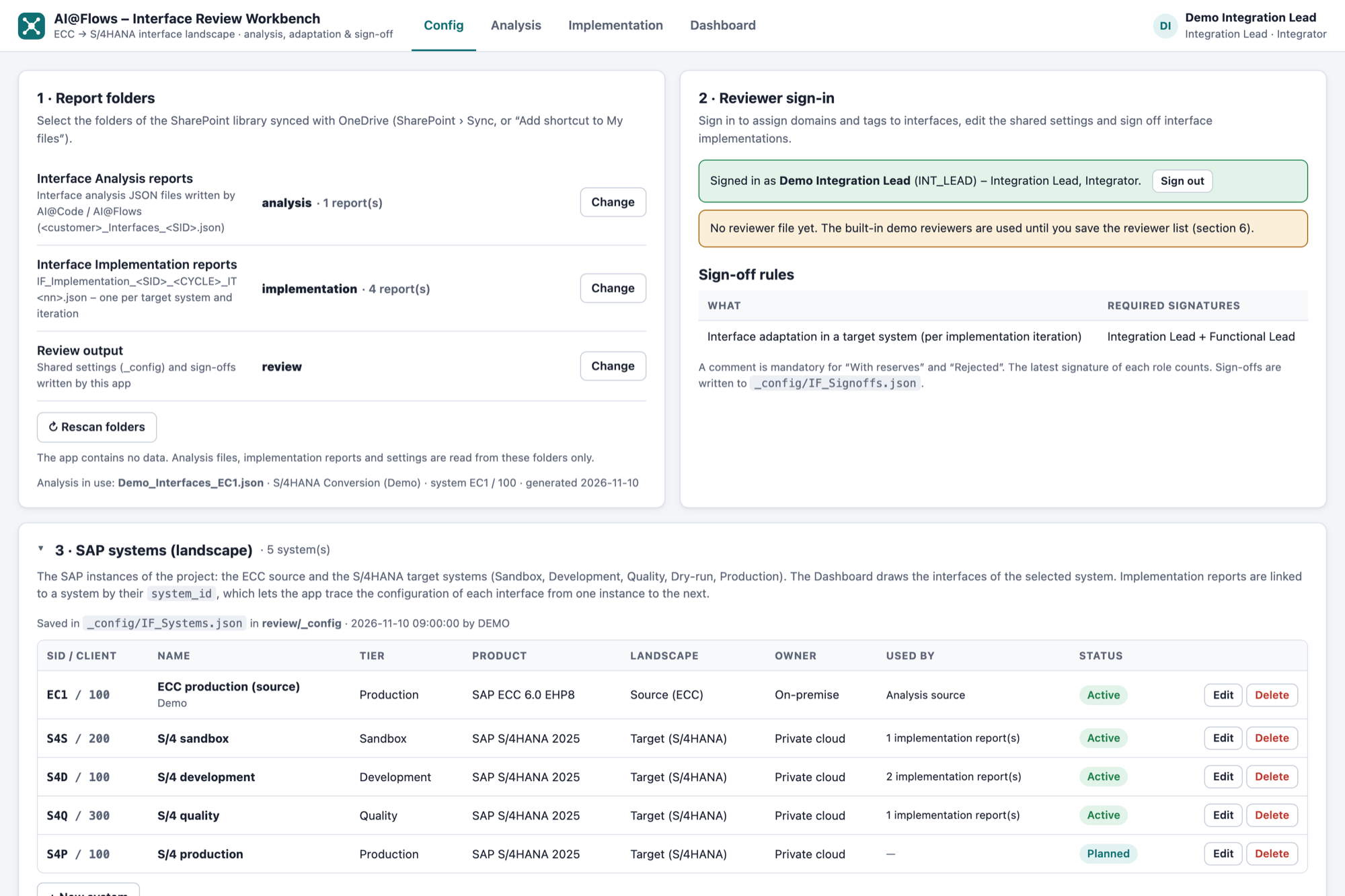
1 · Report folders
Select the three folders the app reads from:
| Folder | Content |
|---|---|
| Interface Analysis reports | Interface analysis JSON files for the source ECC system |
| Interface Implementation reports | Implementation reports IF_Implementation_<SID>_<CYCLE>_IT<nn>.json |
| Review output | Shared settings and sign-offs, in the _config subfolder |
| Button | Effect |
|---|---|
| Select folder / Change | Pick a folder |
| Reconnect folders | Shown when the browser needs your permission again for the remembered folders |
| ↻ Rescan folders | Read the folders again, e.g. after a new implementation report was added |
The app contains no data: analysis files, implementation reports and settings are read from these folders only.
2 · Reviewer sign-in and sign-off rules
Choose your name, enter your PIN and click Sign in. A green banner confirms your name, user ID, role and organisation.
Sign-off rules
| What | Required signatures |
|---|---|
| Interface adaptation in a target system (per system and implementation cycle) | Integration Lead + Functional Lead |
- Each role chooses a decision: Approved, With reserves or Rejected.
- A comment is mandatory for With reserves and Rejected.
- The latest signature of each role counts.
- Sign-offs are written to
_config/IF_Signoffs.json.
See Implementation › Sign-off for how to sign.
3 · SAP systems (landscape)
The SAP instances of the project: the ECC source and the S/4HANA target systems.
| Field | Description | Example |
|---|---|---|
| System ID (SID) | 2–8 letters and digits | S4D |
| Client | Up to 3 characters | 100 |
| Name | Free text | S/4 development |
| Tier | Sandbox · Development · Quality · Dry-run · Pre-production · Production | Development |
| Product / release | Free text | SAP S/4HANA 2025 |
| Landscape | Source (ECC) or Target (S/4HANA) | Target (S/4HANA) |
| Status | Planned · Active · Decommissioned | Active |
| Owner / hosting | Free text | RISE, hosting partner |
| Comment | Free text |
Click + New system to add one, or Edit / Delete on a row. The Used by column shows whether the system is the analysis source and how many implementation reports refer to it.
Why it matters:
- The Dashboard draws the interfaces of the system you select here.
- Implementation reports are linked to a system by their
system_id. This is how the app traces the configuration of an interface from one instance to the next (source ECC → Development → Quality → …). - If a report refers to a SID that is not in the list, it appears as Found in reports, not in this list with an Add to list button.
4 · Tags
Free labels you can attach to interfaces, e.g. EDI, Cutover critical, Bank, Retire candidate.
- Each tag has a name, an optional description and a colour.
- Tag names cannot contain a comma or the
|character. - The Used by column shows how many interfaces carry the tag.
Tags are assigned to interfaces on the Analysis page and can be used as filters on the Analysis, Implementation and Dashboard pages.
5 · Business domains
The business areas used to group interfaces, e.g. P2P (Procure to Pay), O2C (Order to Cash), R2R (Record to Report).
- Each domain has a code (1–10 characters: letters, digits,
-,_,/), a name, an optional description and a colour. - Each interface has at most one domain.
- Domain codes found in the data but missing from the list are shown as Used, not in this list with an Add to list button.
On the Dashboard, the domain colour is shown as a stripe on each application box and can be used as the line colour.
6 · Reviewer administration
Click Edit reviewer list to maintain who can sign in.
| Field | Description |
|---|---|
| User ID | 2–30 characters: letters, digits, _ . - (e.g. JDUPONT) |
| Name | Display name |
| Organisation | Client or Integrator |
| Role | Integration Lead or Functional Lead |
| PIN | At least 4 characters |
Use Add to add a reviewer, the Reset PIN field to set a new PIN, Remove to delete one, then Save reviewer list.
The list is saved as _config/IF_Reviewers.json in the Review output folder, so it is shared with everyone. The file is encoded and PINs are stored only as salted hashes.
Encoding the reviewer file prevents casual reading. It is not protection against a determined user with access to the folder. Control access to the Review output folder through SharePoint permissions.
Until a reviewer list is saved, the app uses built-in demo reviewers. Replace them with the real project reviewers before you start signing off.
Other settings
These two settings are at the bottom of the page and are saved in your browser only (not shared):
| Setting | Description |
|---|---|
| ATC Review Workbench (optional) | Path or address of ATC_Review_Workbench.html. When set, ATC entries such as CYCLE-01 ATC-0042 become links that open ATC_Review_Workbench.html#<cycle>/<ATC ID> |
| CSV export separator | ; (semicolon – EU Excel) or , (comma – US Excel), used by every Export CSV button |