🔎 AI@Flows Analysis
The Analysis page shows the interface analysis of the source ECC system: every interface found in the interface inventory, with the evidence gathered in the system, its usage in production and the custom code that must be adapted.
It has four views, selected at the top of the page:
| View | Content |
|---|---|
| Interfaces | The interface list with KPIs and filters (default) |
| Adaptation overview | Interfaces that need custom code adaptation, sorted by P1 findings |
| Review comments | All review comments on the analysis, review rounds and versions (see Review comments) |
| About the data | Project, system, generation date and sources of the analysis file, and how technology, mode and business objects are derived |
Switch between systems
There is one analysis file per analysed system (the system_id in the file header). The System selector in the toolbar switches between them, like on the Dashboard. Systems of Config › SAP systems without an analysis file are listed greyed out with (no analysis file). If a system has several analysis files, a second selector lets you choose the file.
Switching the system also changes the Dashboard and the analysis column of the Implementation landscape matrix. Unsaved review comments stay with their analysis file.
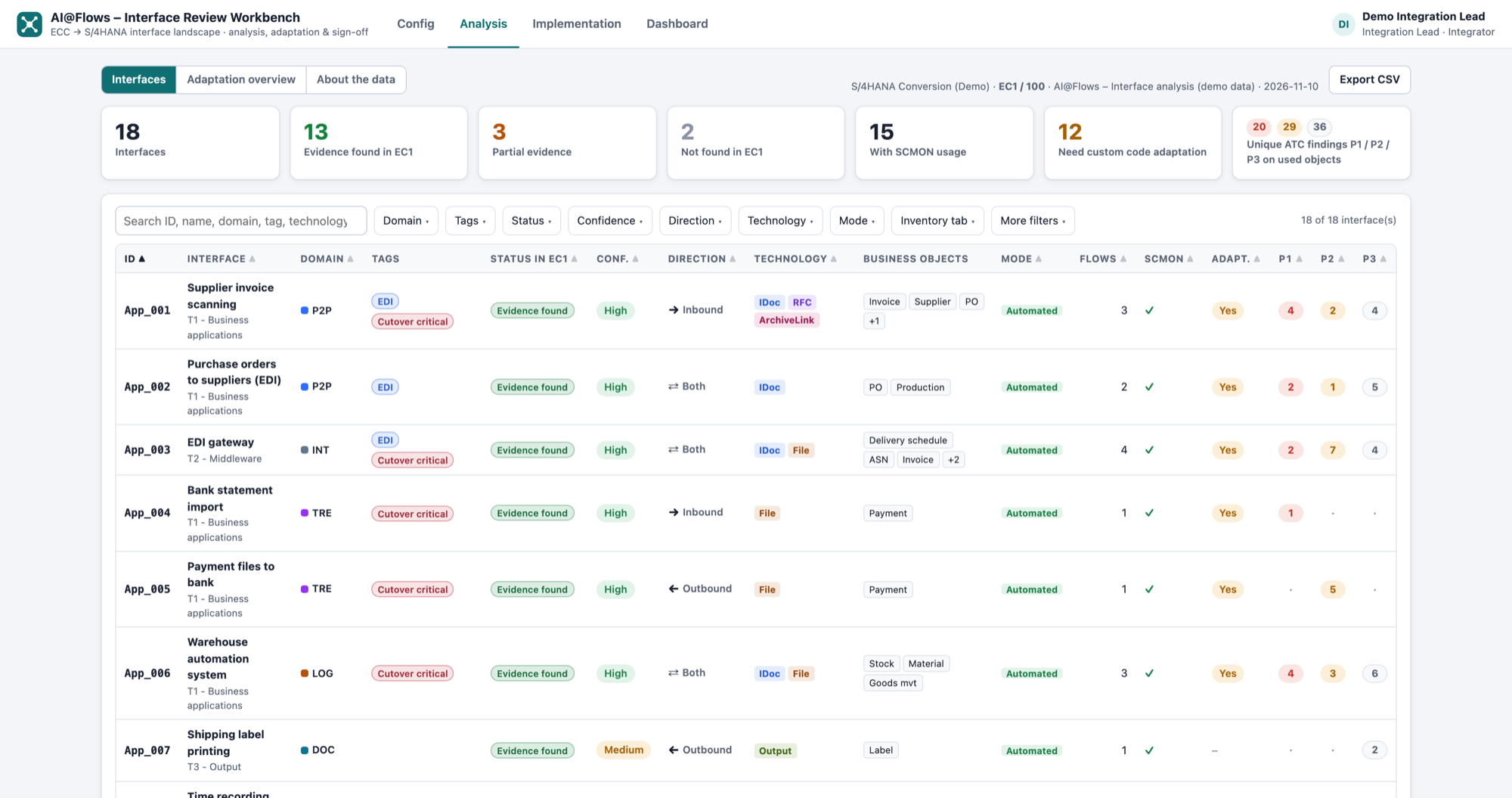
KPIs
| KPI | Meaning |
|---|---|
| Interfaces | Number of interfaces in the analysis |
| Evidence found in <SID> | Interfaces with clear evidence in the analysed system |
| Partial evidence | Interfaces with some evidence only |
| Not found in <SID> | Interfaces for which no evidence was found |
| With SCMON usage | Interfaces whose custom objects were called in production (SCMON) |
| Need custom code adaptation | Interfaces with custom objects that need adaptation for S/4HANA |
| Unique ATC findings P1 / P2 / P3 on used objects | ATC findings, counted once even if several interfaces share the object |
The P1, P2 and P3 figures count only ATC findings on objects used in production, i.e. objects with SCMON calls > 0. Objects never called, or not recorded by SCMON, are left out. This keeps the focus on the code that really runs.
Search and filters
Type in the search field to find interfaces by ID, name and other text. The filter drop-downs narrow the list further; each option shows how many interfaces it matches:
| Filter | Values |
|---|---|
| Domain | Business domains from Config, plus No domain |
| Tags | Tags from Config |
| Status | Evidence found · Partial evidence · Not found |
| Confidence | High · Medium · Low |
| Direction | Inbound · Outbound · Both · Unknown |
| Technology | IDoc / EDI · RFC / BAPI · Web service / API · Flat file · ArchiveLink / content · Print / output · Other / unknown |
| Mode | Automated · Manual · Mixed · Unknown |
| Inventory tab | The tab (sheet) of the source interface inventory the interface comes from |
| More filters | Feedback expected · Needs adaptation (custom code) · In SCMON (used in production) · Has P1 findings (used objects) · In an implementation report · No flow found |
Click Reset filters to clear all filters. Click a row to open the interface.
Interface detail
The detail page starts with a header: ID and name, status, flags such as Feedback expected or Needs custom code adaptation, the Domain, Tags and Business objects. Use ‹ Previous / Next › to move through the filtered list.
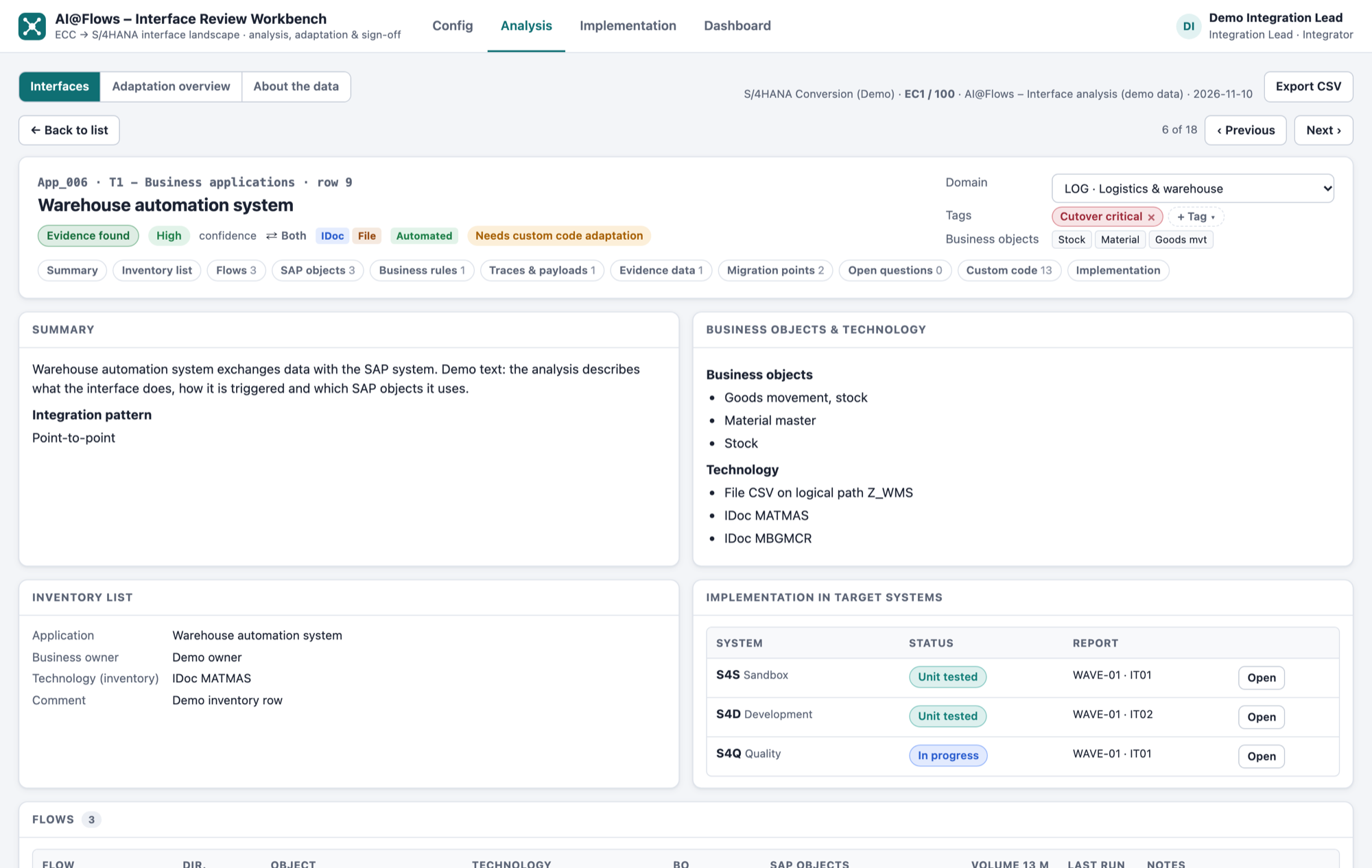
The detail is split into sections:
| Section | Content |
|---|---|
| Summary | What the interface does and its integration pattern |
| Business objects & technology | Business objects exchanged (e.g. purchase order, goods receipt, invoice) and the technology of each flow |
| Inventory list | The original row from the interface inventory, including whether feedback is expected |
| Implementation in target systems | Status of the interface in each implementation report, with a link to open it |
| Flows | Each flow with direction, technology, volume over 13 months and last run |
| SAP objects | Objects found in the system (e.g. RFC destinations, IDoc ports, partner profiles, programs, jobs) with description and evidence |
| Business rules | Rules applied by the interface and their S/4HANA impact |
| Traces & payloads | Transactions and selections used to find the evidence |
| Evidence data | Evidence data that can be reused, for example for testing |
| Migration points | Points to address for S/4HANA |
| Open questions | Questions for the business or the interface owner, and what was searched |
| Custom code | Custom code adaptation with SCMON usage and ATC findings (see below) |
| Review comments | Comments of the reviewers on this sheet (see below) |
Custom code
The Custom code section shows the custom objects linked to the interface, how they were matched (names and prefixes), whether they appear in SCMON, and their ATC findings.
| Element | Description |
|---|---|
| In SCMON / Not in SCMON | Whether any object of the interface was called in production |
| Needs adaptation / No adaptation needed | Whether custom code must be adapted |
| How matched · used objects in SCMON | The names and prefixes used to match objects, and the objects with their SCMON call counts |
| Objects with findings | Type, object, package, usage, SCMON calls, P1/P2/P3, ATC entries, Also in (other interfaces using the same object) |
| ATC findings | Priority, object / include and line, check / message, SAP notes (links to SAP for Me). Filter by priority and object; Show 100 more loads more rows |
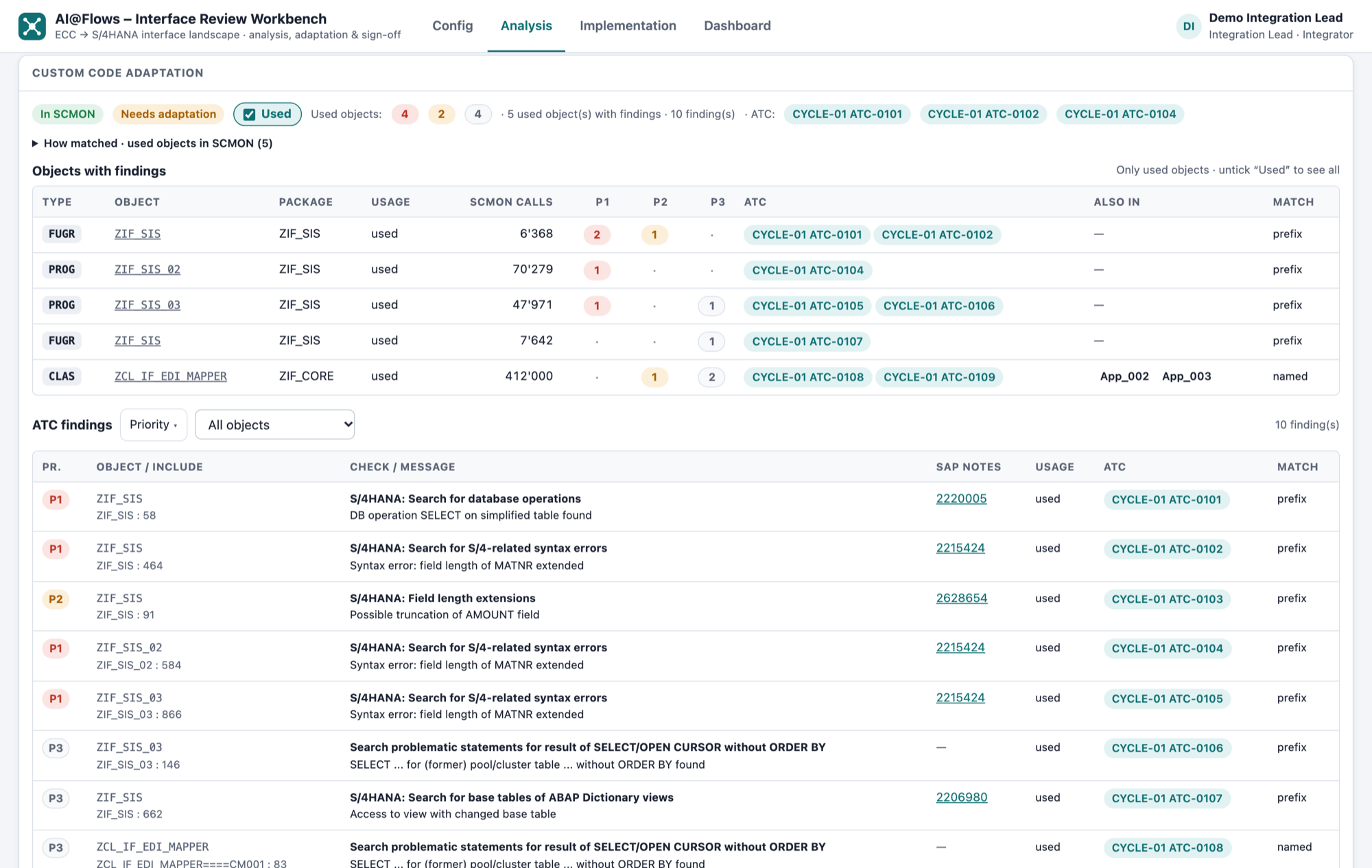
The "Used" checkbox
- Ticked (default): only objects used in production (SCMON calls > 0) and their findings are shown.
- Unticked: objects not recorded by SCMON are shown as well. An extra filter lets you choose the usage (used, not used (0 calls), not recorded by SCMON), and show objects with 0 SCMON calls displays objects that were recorded but never called.
The Used checkbox resets to ticked each time you open an interface.
When an ATC Review Workbench address is set in Config, each ATC entry (e.g. CYCLE-01 ATC-0042) opens the matching finding in the ATC Review Workbench.
Assign domain and tags
When you are signed in, the interface header lets you choose the Domain and add or remove Tags. The assignment is saved in _config/IF_Assignments.json in the Review output folder, so it is shared with everyone who uses the same folder.
Without signing in, the header shows Sign in (Config) to change domain and tags.
Review comments
Application owners and the system integrator comment on the interface sheets, so the AI application can correct the analysis and learn from it. You must be signed in and the Review output folder must be selected.
Add a comment
- Open an interface and click 💬 Review comment at the top, or the 💬 button in the header of any section.
- In the Review comments box at the bottom of the sheet, choose the Section, an optional Reference (flow, object, rule…), the Type (Error, Missing information, Improvement, Question) and the Scope:
- Customer specific — knowledge about this customer, its systems or partners (customer feedback knowledge base)
- Best practice (general) — valid for every customer (best practices knowledge base)
- Not sure — the AI application decides
- Write the comment and click Add comment, then Save review in the yellow banner. Comments are only written to the folder when you save.
You can edit or withdraw your own comments until the round is closed. Interfaces with comments show 💬 n in the list, and the filter Has review comments finds them.
Rounds and versions
- Each save writes a new version of the review file
IF_Review_<analysis>_R<nn>_<timestamp>.jsonin the Review output folder. Comments saved meanwhile by other reviewers are merged. - In the Review comments view, Close round… freezes the round (with an optional note for the AI application). New comments start the next round (
R02, …). - The closed round goes to the AI application. It writes a resolution file; its outcome (Applied, Partly applied, Not applied, Question) and note are shown under each comment, and the Versions table marks the round as processed.
- Export CSV downloads the comments with their outcome.
Adaptation overview
Lists the interfaces with ATC P1–P3 findings on objects used in production (SCMON calls > 0), sorted by P1, then P2, then P3. Objects not recorded by SCMON are left out.
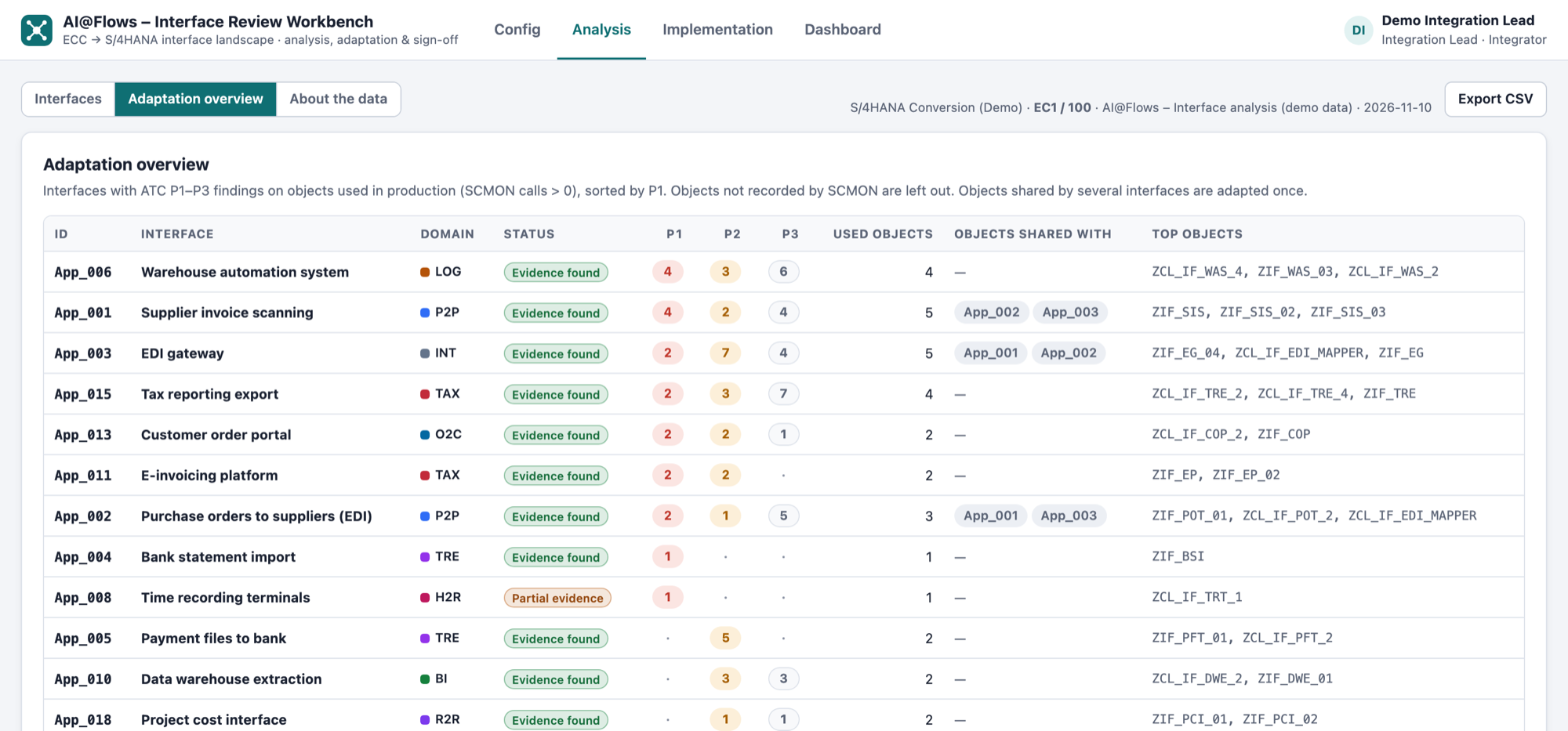
| Column | Description |
|---|---|
| ID, Interface, Domain, Status | Interface identification |
| P1, P2, P3 | Findings on used objects |
| Used objects | Number of used objects with findings |
| Objects shared with | Other interfaces that use the same objects. A shared object is adapted once |
| Top objects | The three objects with the most findings |
Click a row to open the interface.
CSV export
Export CSV downloads the filtered interface list with: ID, interface, inventory tab, confidence, direction, technology, business objects, in SCMON, needs adaptation, P1/P2/P3 (used), and more. The separator (; or ,) is set in Config.