🔎 AI@CustomCode Analysis
The Analysis page shows the ATC Analysis report of a cycle: one entry per finding, with the AI application's proposal. Here the leads decide whether each proposal can be implemented.
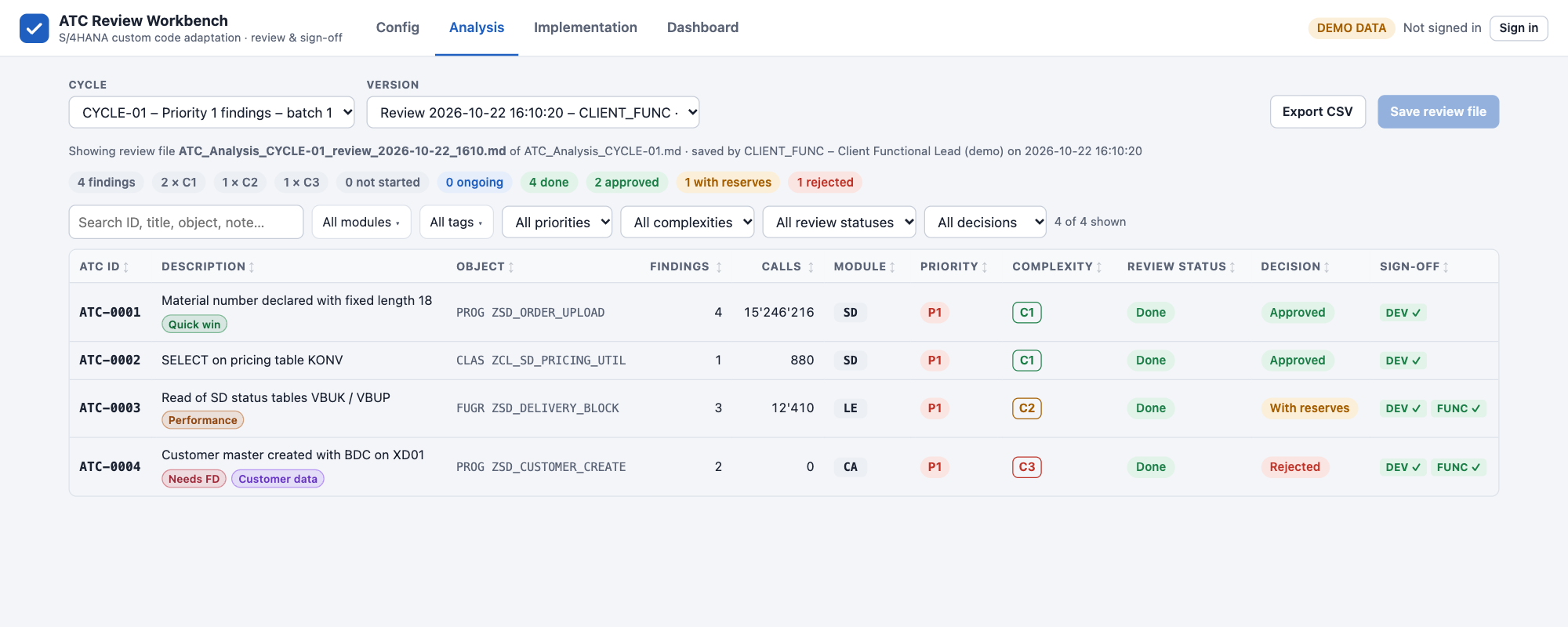
Cycle and Version
| Field | Description |
|---|---|
| Cycle | The cycles found in the reports, with the name from Config › Cycles. A closed cycle is marked (closed) and can no longer be signed. |
| Version | The original report, or one of its review files. The latest review file opens by default, so you continue where the last reviewer stopped. |
The line under the selection shows which file you are looking at, who saved it and when.
The Finding List
The chips above the list count the findings by complexity, review status and decision.
| Column | Content |
|---|---|
| ATC ID | ID of the entry in the report, e.g. ATC-0003 |
| Description | Title of the finding, with its tags |
| Object | Object type and name, e.g. FUGR ZSD_DELIVERY_BLOCK |
| Findings | Number of ATC messages grouped in the entry |
| Calls | Total production calls of the object (SCMON) |
| Module | SAP module |
| Priority | ATC priority P1–P3 |
| Complexity | C1 – simple code change · C2 – functional review · C3 – functional design |
| Review status | Not started, Ongoing (at least one comment or signature) or Done (all required signatures) |
| Decision | Pending, Approved, With reserves or Rejected |
| Sign-off | One badge per required role: ✓ signed, ○ open |
- Search finds text in the ID, title, object, fields, module and tags.
- Filters: module and tags (multiple choice), priority, complexity, review status and decision.
- Sort: click a column header to sort ascending, again for descending, a third time to return to the report order. Empty values are always last. The sort is remembered.
- Export CSV exports the filtered list with module, tags, calls, findings, decisions and signatures.
Click a row to open the finding.
The Finding Detail
← Back to list, ‹ Previous and Next › move through the findings in the order of the list, with its filters and sort.
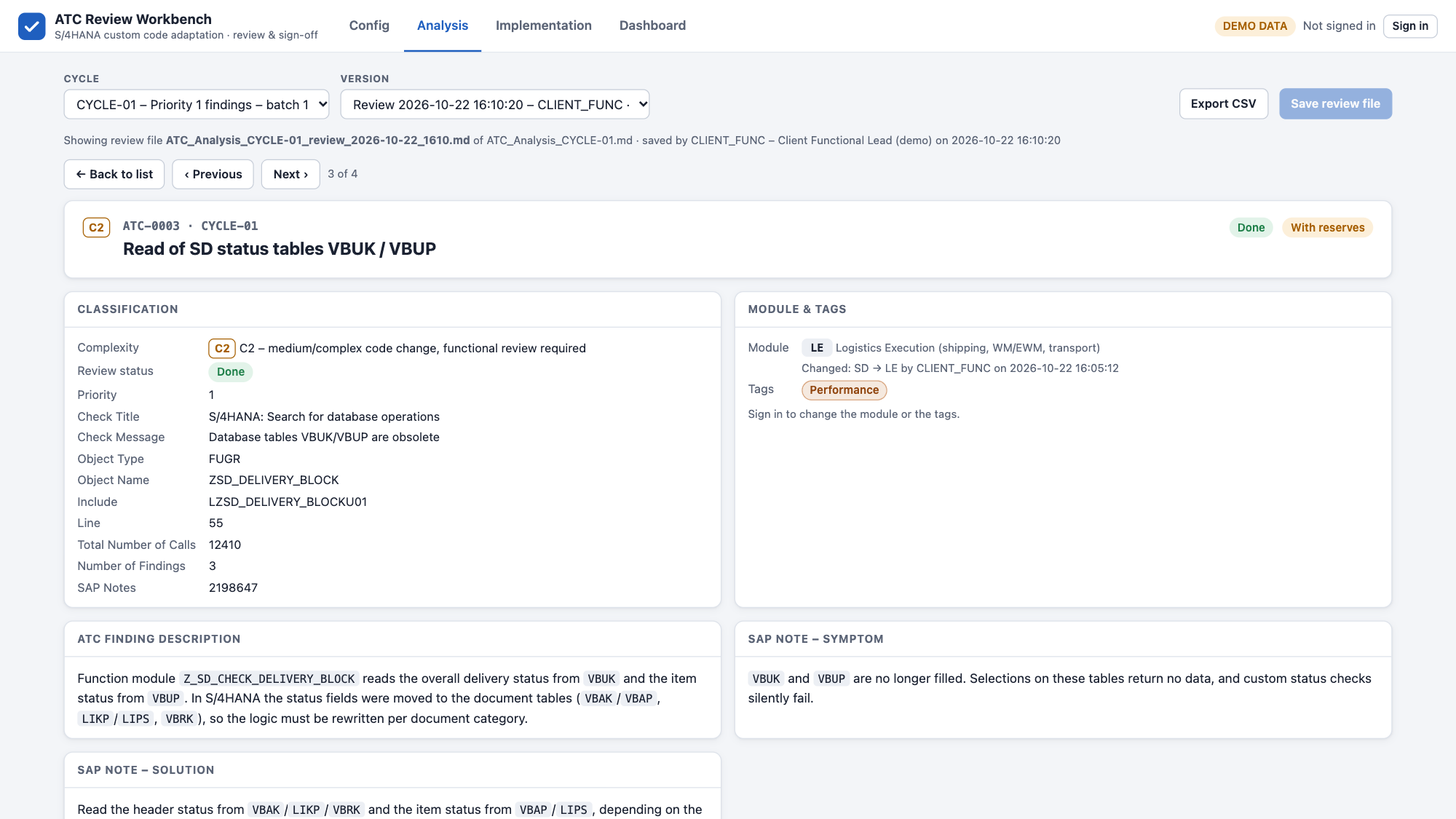
| Section | Content |
|---|---|
| Classification | Complexity, review status, priority, ATC check title and message, object, include, line, total number of calls, number of findings, SAP notes |
| Module & tags | SAP module and tags, see below |
| ATC finding description | What the code does and why ATC flags it |
| SAP note – symptom / solution | Summary of the SAP note |
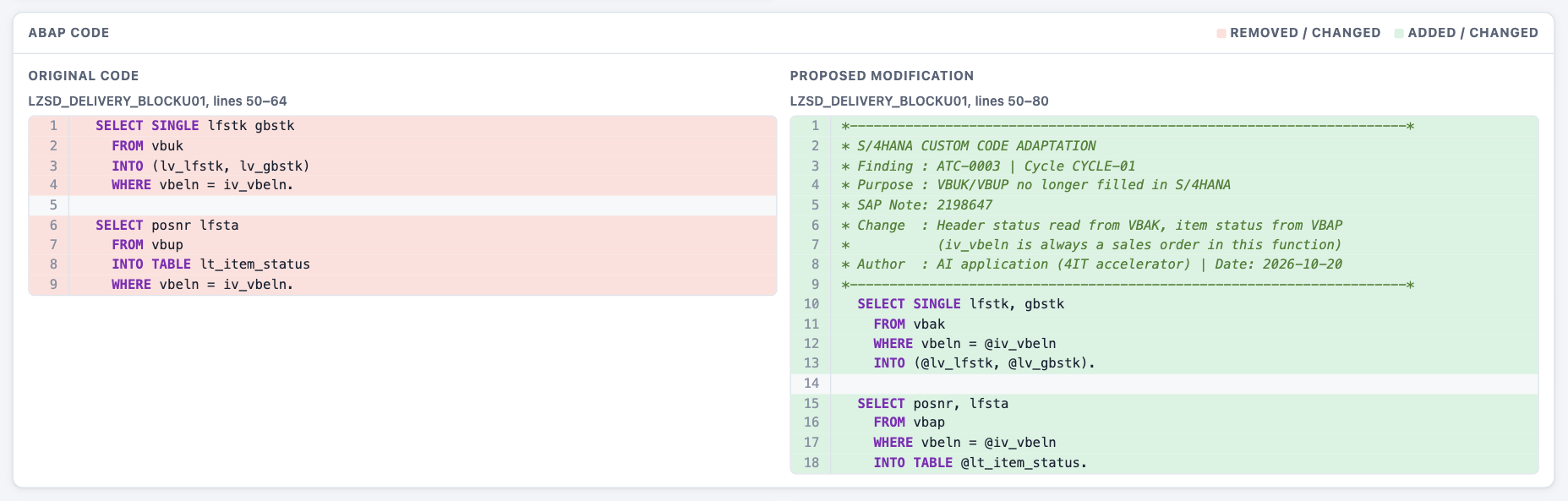
| ABAP code | The original code and the proposed modification side by side, with removed and added lines highlighted |
| Dependencies | Callers, related objects and other findings |
| Functional impacts | Risks for the business process |
| Functional proposed actions | What the functional team should confirm or test |
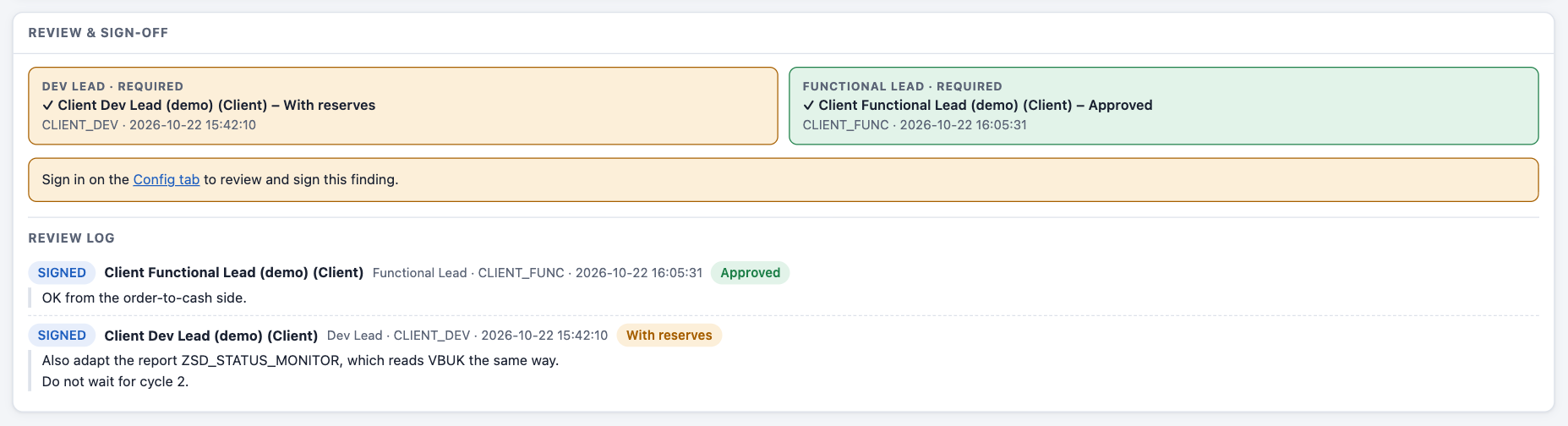
| Review & sign-off | Signatures and the review log, see below |
Module and Tags
Signed-in reviewers can:
- change the module of a finding. The change is shown with its author and time (e.g. Changed: SD → LE). The implementation takes the module over from the analysis review.
- add or remove tags from the list in Config › Tags.
Changes are written to the review file when you click Save review file.
Review and Sign-off
- Sign in on the Config page.
- Open a finding and choose Approved, With reserves or Rejected.
- Enter a comment — mandatory unless Approved. Comments are read by the AI application and the project team.
- Click Validate & sign. A signature is not final: you can sign again later, and the latest signature of each role counts.
- When you are done, click Save review file.
Older review files may contain drafts from an earlier version of the workbench. They are shown as DRAFT – not counted, and the list shows how many findings have an unsigned draft. Open the finding — your decision and comment are prefilled — and click Validate & sign to make it count.
The required signatures follow the sign-off rules: the Dev Lead for C1, the Dev Lead and the Functional Lead for C2 and C3. The review log lists every comment and signature with name, role, user ID and time; the latest signature of each role counts.
Review files
Save review file writes ATC_Analysis_<CYCLE>_review_<date>_<time>.md to the Review output folder. The report itself is never changed.
- Several reviewers can work at the same time. When you save, the workbench takes the newest review file and adds everyone's signatures, tag and module changes to it, so nobody's work is lost — even if you had an older version open.
- If parallel versions still exist (for example because a synced folder updated late), a banner shows N review versions were saved in parallel. Click Merge all versions to combine them into one new review file.
- Review files are never changed or deleted; every save and every merge writes a new file.
- The AI application reads the latest review file before the implementation, so decisions and comments flow into the next step.