🚀 Overview
What is AI@Excel?
AI@Excel is an Excel add-in for SAP S/4HANA® with a built-in AI assistant. It brings live SAP data into Excel — analytical queries and CDS views, with the totals calculated by SAP — and adds an assistant that proposes analyses, tables and charts from that data.
It rests on three ideas:
| Idea | What it means | |
|---|---|---|
| 1 | SAP in Excel, live | Analytical queries and CDS views of S/4HANA, totals from SAP, right-click navigation in the style of Analysis for Office — without an intermediate server. |
| 2 | An assistant that proposes | Its figures come from SAP and its charts are checked against SAP. By default nothing is written to the workbook without your approval, and every step can be undone. |
| 3 | Ready for IT | Per-user MSI signed by 4IT Services, read-only access to SAP, guardrails set by the company. |
All screenshots on these pages show data from the 4IT SAP S/4HANA CAL demo system (company code 1010, ledger 0L). They contain no customer data.

Key Features
| Feature | Description |
|---|---|
| 📊 Analytical queries and CDS views | Read the analytical queries and CDS views of S/4HANA over OData, with the totals and subtotals calculated by SAP |
| 🖱️ Right-click navigation | Filter, drill down, expand or sort from any cell of the table — as in Analysis for Office |
| 🌳 Hierarchies, variables and filters | Account hierarchies, mandatory and optional variables, saved variants |
| 🔢 Cell formulas | Bring single SAP values into any cell with a formula, for your own report layouts |
| 📈 Native Excel charts | Charts linked to the table: they follow every refresh, are saved with the workbook and paste into PowerPoint |
| 🤖 AI assistant | Proposes analyses, inserts tables and charts after your approval, traces cost and duration of every step |
| 📦 Installation without admin rights | Per-user MSI, signed by 4IT Services |
| 🛡️ Company guardrails | Policies set by IT through the registry (GPO, Intune) |
How It Works
Step 1 — Run a Query
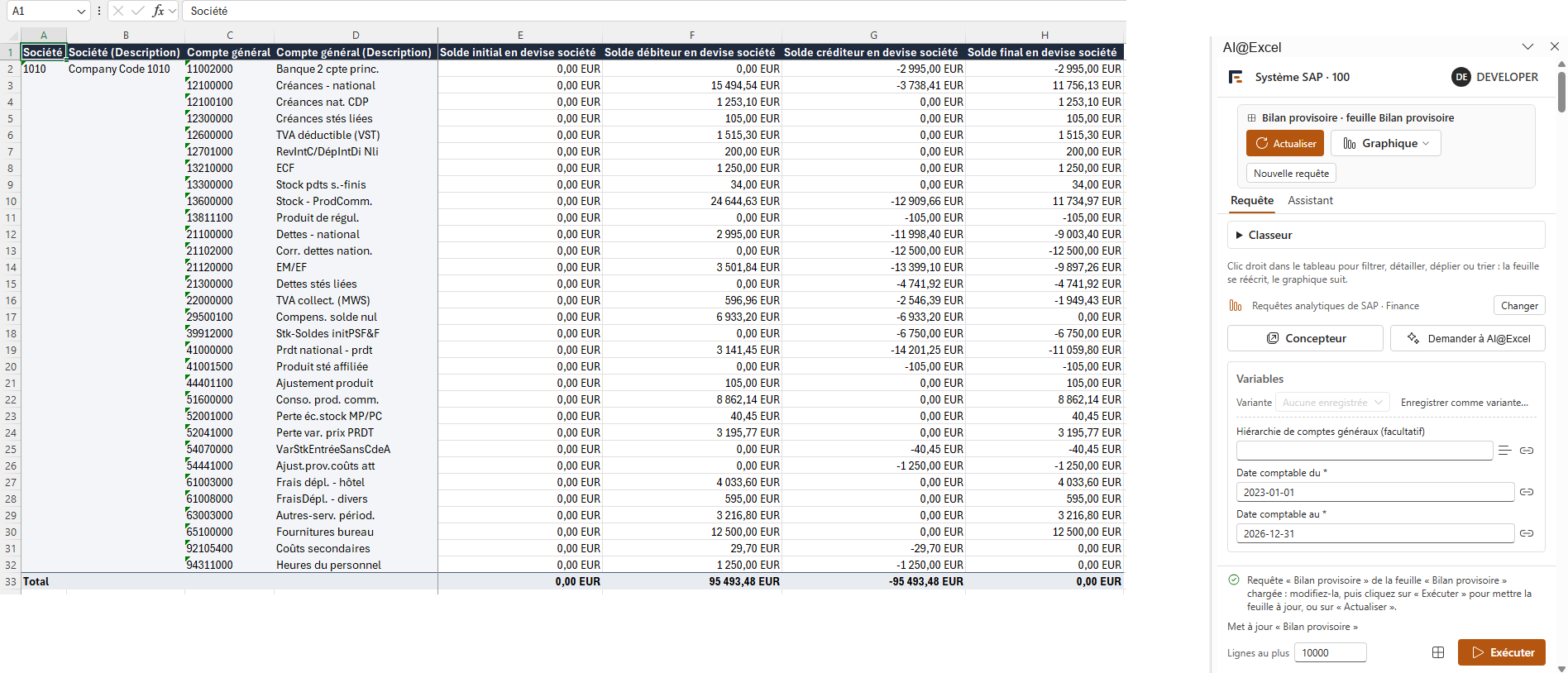
In the Query tab of the AI@Excel pane, choose an analytical query or CDS view, fill the variables (for example the posting date range) and click Execute. The sheet is written with the figures and totals of SAP; each amount keeps its currency. Right-click any cell to filter, drill down, expand or sort.
→ See AI@Excel Query.
Step 2 — Ask the Assistant
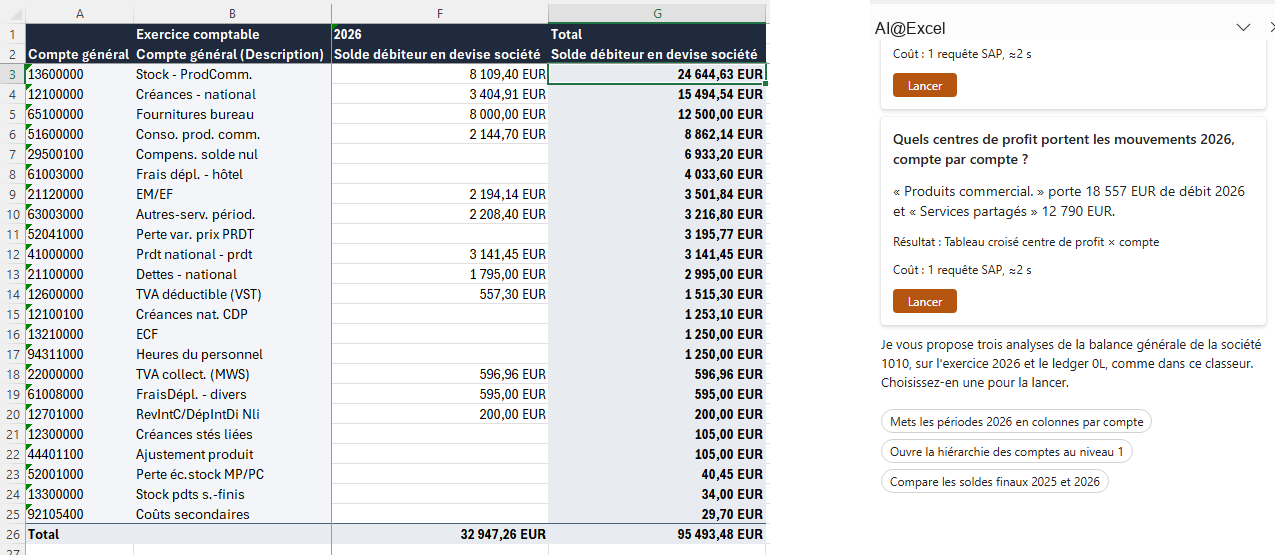
In the Assistant tab, ask a question in plain language — "The trial balance of company 1010?". The assistant reads the source, proposes analyses with a figure from SAP and shows the cost of each proposal. Nothing runs until you click Run.
→ See AI@Excel Assistant.
Step 3 — Accept, Insert, Chart
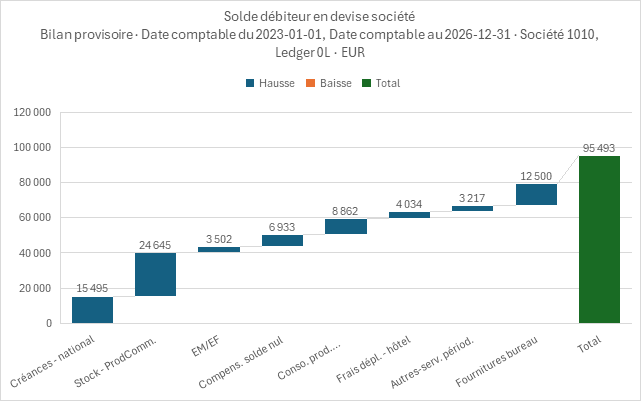
The assistant shows a preview of the data read from SAP before anything is written. You choose the chart and click Insert into a new sheet — or Ignore. Charts are native Excel charts; Python figures are available on request and checked against SAP.
Architecture at a Glance
The user's workstation talks directly to SAP: Excel with the AI@Excel add-in reads SAP S/4HANA over OData (HTTPS) and calls the Claude model for the assistant. There is no intermediate server and nothing is written to SAP.
→ See AI@Excel Architecture & IT.

Who Uses It
| Role | Typical use |
|---|---|
| Finance and controlling | Trial balances, account analyses, period comparisons straight from S/4HANA, with SAP totals |
| Business analysts | Ad-hoc questions to the assistant, charts for presentations |
| Key users | Prepare queries, variants and report layouts with cell formulas for their teams |
| IT | Deploy the signed MSI per user and set the guardrails by policy |