🖥️ Application
The AI@BPMN interface is split into two main areas: a left panel for inputs and controls, and a right panel with the BPMN diagram canvas powered by the embedded BPMN.io modeler.
Step 1 — Welcome Screen
When you open the application, the left panel displays a welcome message inviting you to describe your business process. The right panel shows an empty diagram canvas ready to receive the generated diagram.
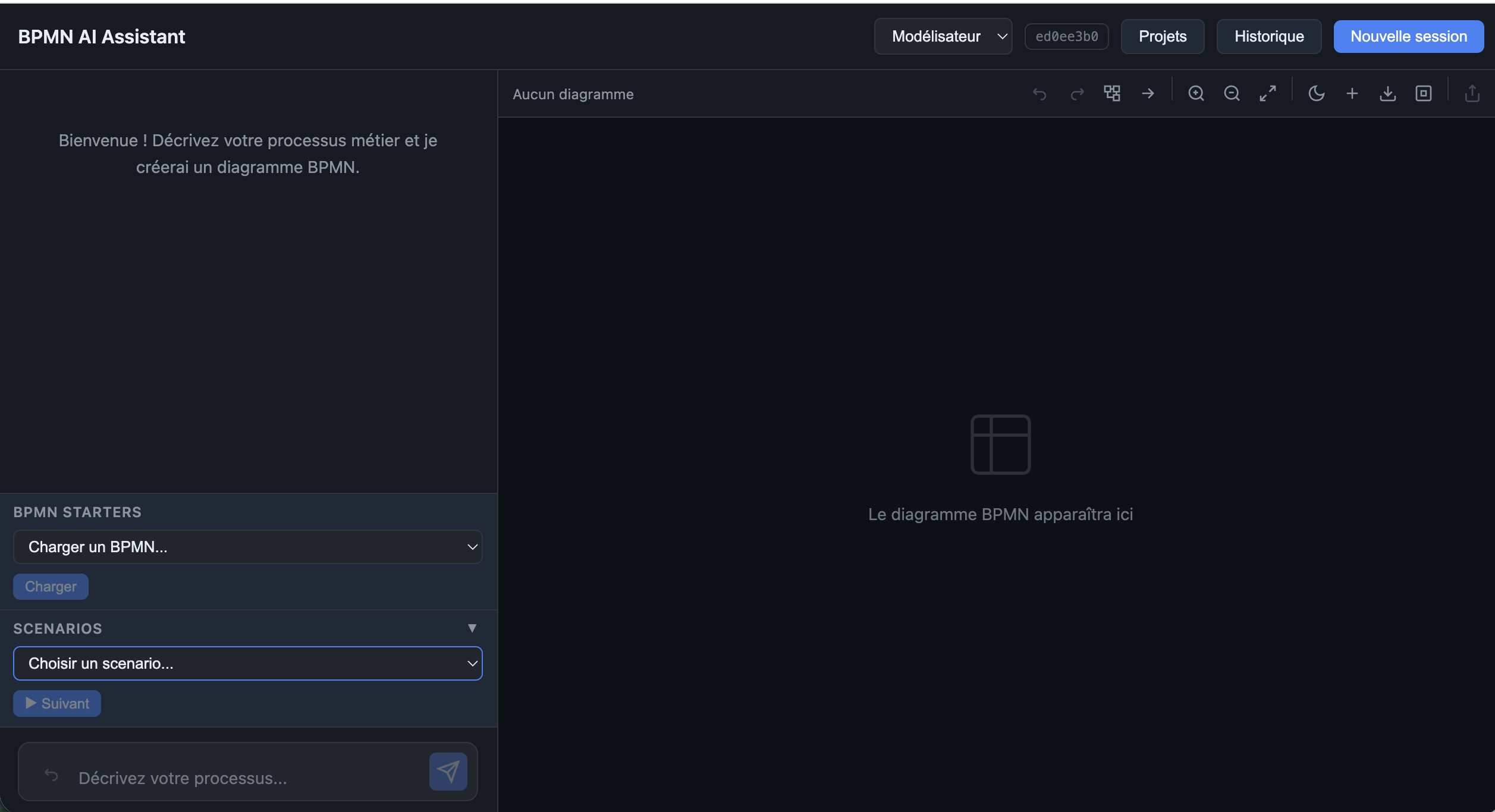
The left panel provides three entry points:
| Section | Purpose |
|---|---|
| Chat input | Type or paste a free-text description of your business process |
| BPMN Starters | Load an existing BPMN XML file as a starting point |
| Scenarios | Select a pre-built scenario from the library to use as a template |
The top bar provides access to the Modeler view, Projects, History, and the New Session button.
Step 2 — Describe Your Process
Type a description of your business process in the chat input at the bottom of the left panel. The description can be as simple or as detailed as you need — the AI will interpret it and generate a corresponding BPMN diagram.
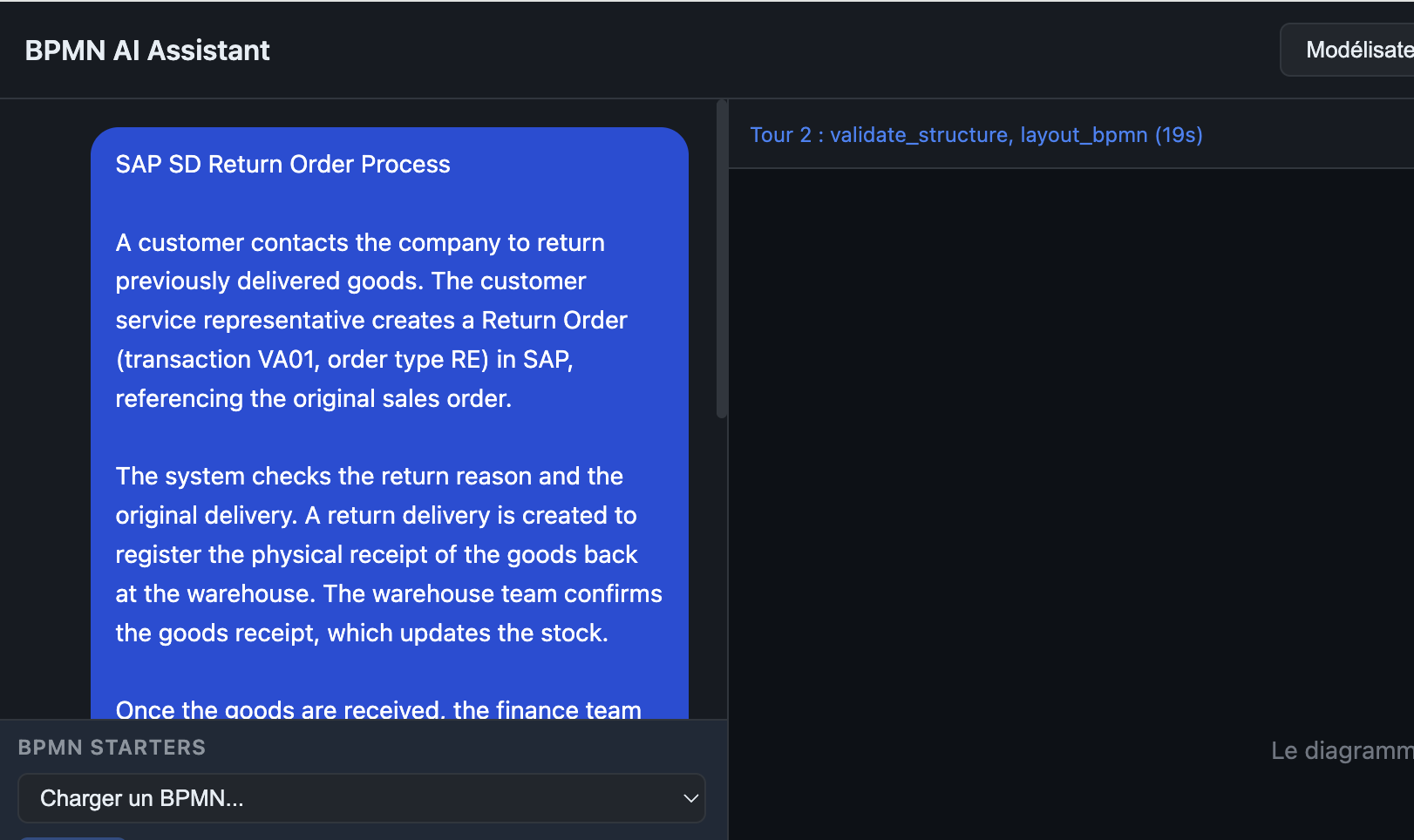
The application starts processing immediately after submission. A progress indicator shows the current generation step (e.g. validate_structure, layout_bpmn).
You can describe processes at any level of detail — from a high-level overview to a step-by-step operational flow. The more context you provide, the richer the generated diagram.
Step 3 — Review the Generated Diagram
Once generation is complete, the BPMN diagram appears on the right panel canvas. The left panel simultaneously displays a process summary highlighting the key design decisions made by the AI.
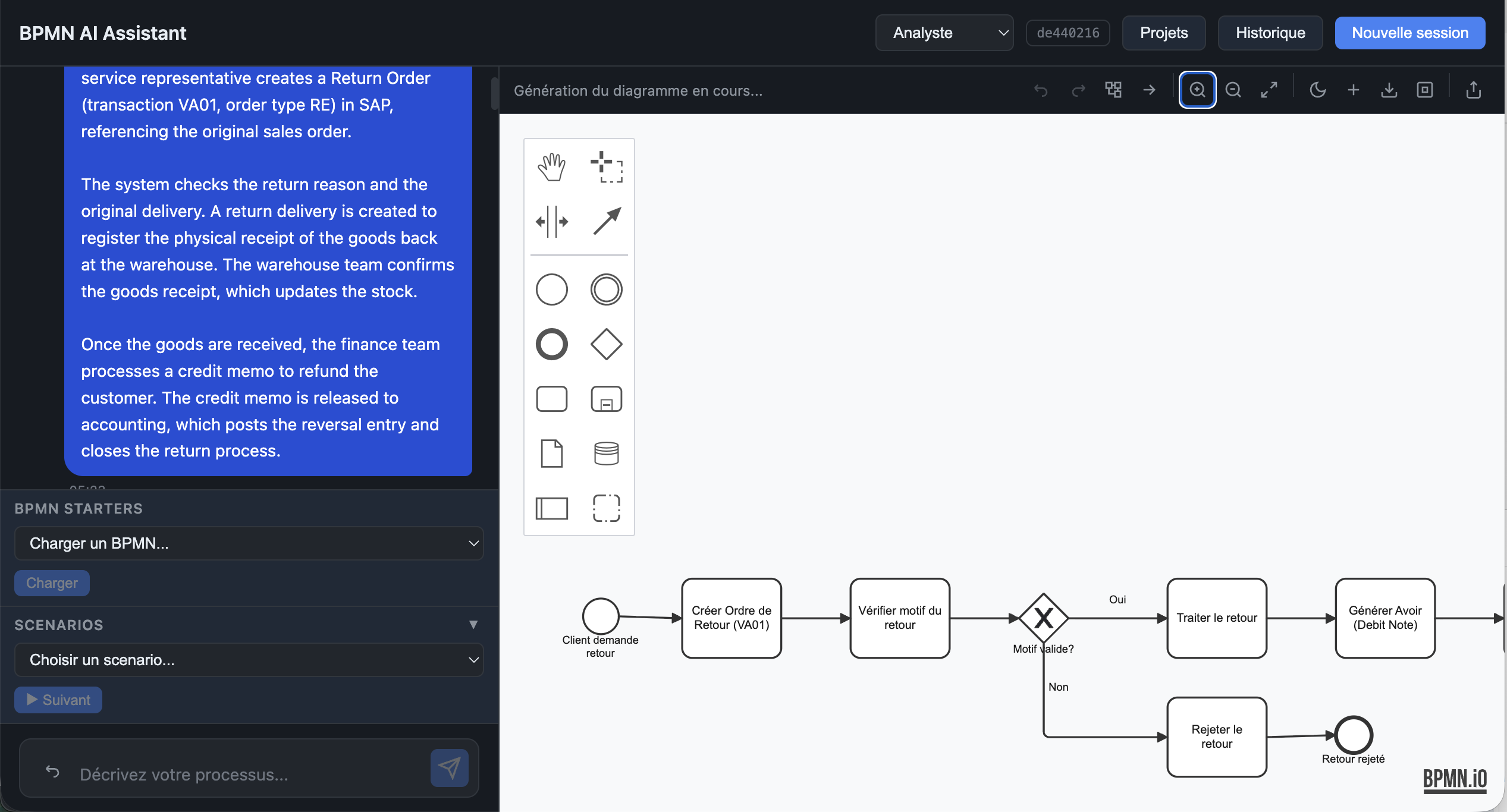
The process summary typically includes:
- Key gateway logic and decision points
- Traceability references (e.g. link to original sales order)
- Finance integration points (e.g. automatic credit note generation)
- Customer communication steps
- Possible end states of the process
Step 4 — Explore the Full Diagram
Use the BPMN.io modeler toolbar to zoom, pan, and navigate the full diagram. The canvas renders all BPMN elements — start events, tasks, gateways, end events, and sequence flows — using the standard BPMN 2.0 notation.
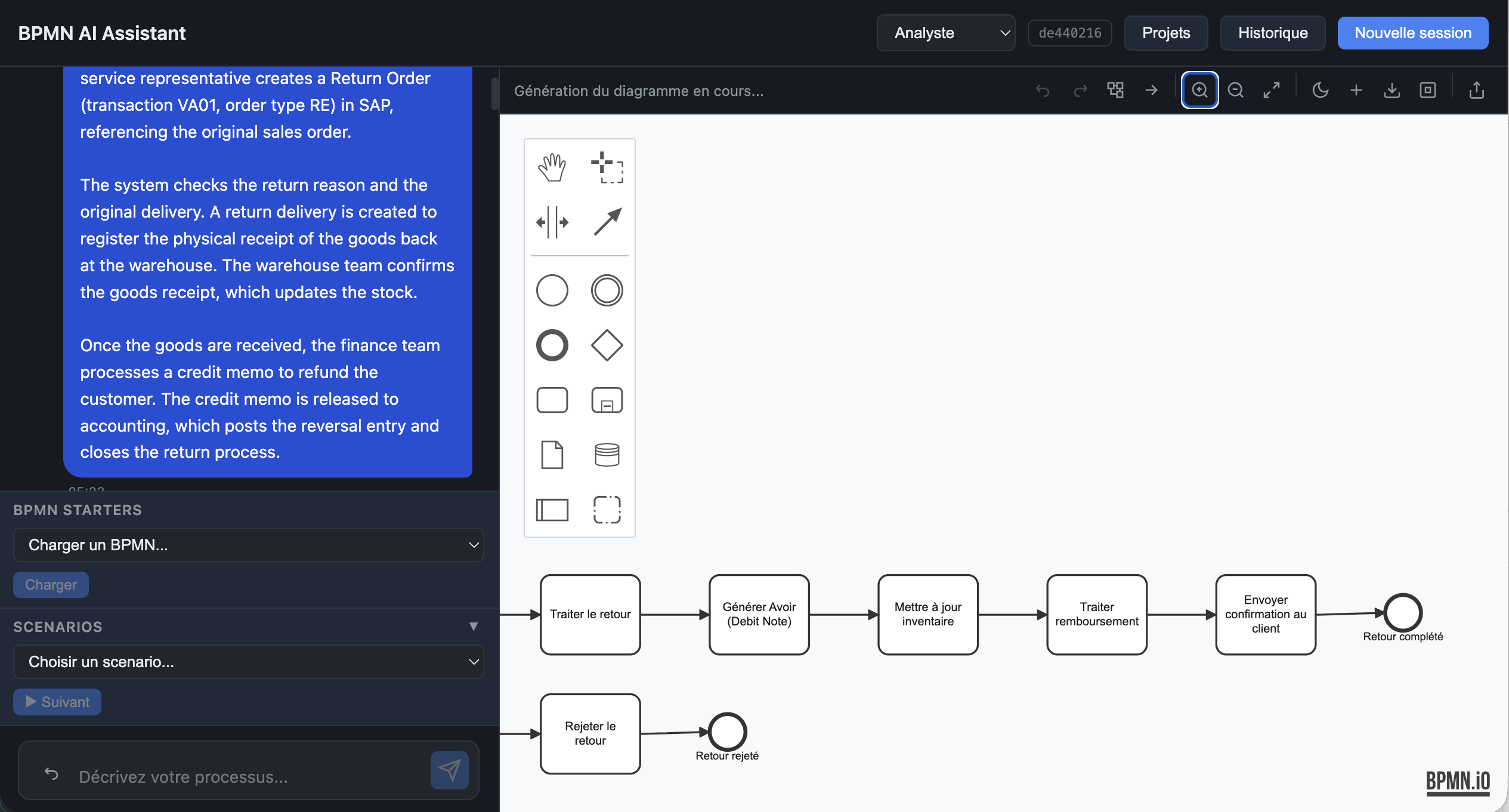
The diagram is fully interactive:
- Zoom in/out using the toolbar or scroll wheel
- Pan by clicking and dragging the canvas
- Select elements to inspect their properties
- Edit tasks, labels, and connections directly in the modeler
Step 5 — Export as BPMN XML
The generated diagram can be downloaded as a standard BPMN 2.0 XML file using the download button in the toolbar. The XML is fully portable and can be imported into any BPMN-compatible tool such as Camunda or Bizagi.
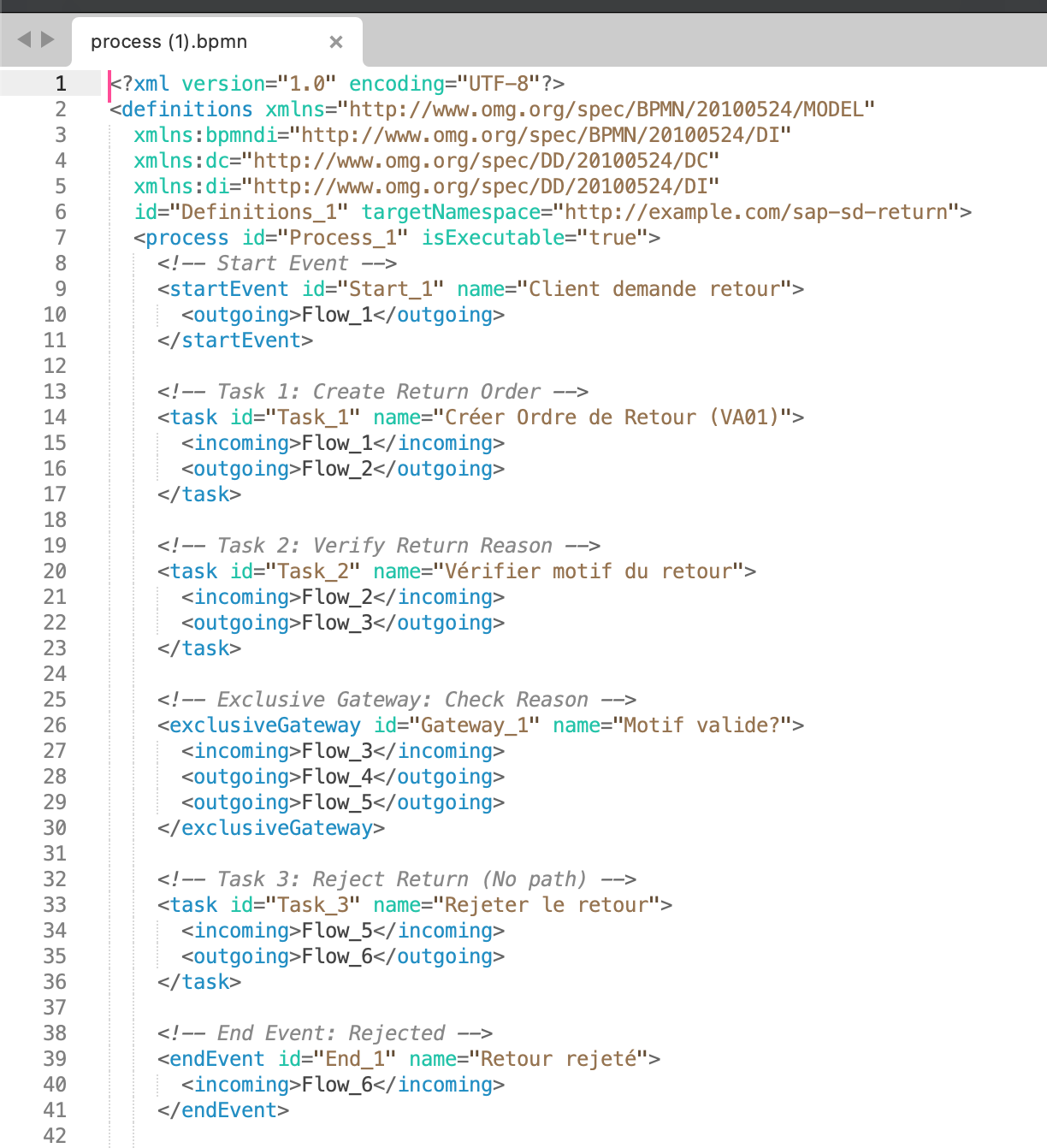
The exported XML includes all process elements with their IDs, names, and sequence flow connections — ready for use in any downstream system.
Step 6 — Publish to Signavio
To publish the diagram directly to SAP Signavio Process Manager, click the Publish to Signavio button in the toolbar.
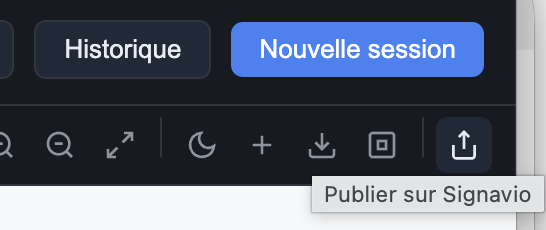
The application transmits the BPMN XML to your Signavio workspace via the Signavio public API. The diagram is imported automatically with all its elements, and is immediately available for review, collaboration, and governance within Signavio.